Overview of features:
🔄 Automatic actions
- Welcome message: Greet new app users with a friendly message.
- Birthday promotion: Send personalized offers or points on birthdays.
- Inactivity trigger: Reactivate customers who have not been active for a while.
📅 Time- and event-based automations
- Promotions that are timed to coincide with a specific date or event, such as holiday offers.
📊 Segment-based automations
- Send messages to specific customer groups (e.g., "regular customers" or "new customers").
Step-by-step setup guide
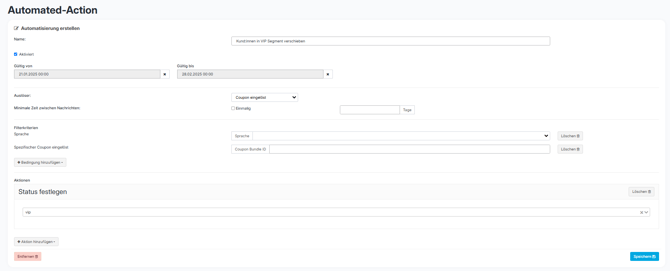
Example: After scanning a coupon (QR code), customers should be placed directly into a segment.
1️⃣ Create a coupon:
Create a coupon under Incentives → Coupons.
Detailed instructions are available here .
2️⃣ Create a segment:
Create a manual segment under Customers → Segments.
Detailed instructions are available here .
3️⃣ Connect automation:
Go to More Tools → Automations to link the two elements. (If this section is not visible, contact us at support@helloagain.at to activate the feature.)
4️⃣ Set automation details:
- Click on New automation and define the details:
- Optional: Set the validity period for the promotion
- Define trigger: Coupon redeemed
- Set filter: Select Add condition → Specific coupon redeemed and enter the coupon ID.
5️⃣ Set action:
Define which action should be performed. In this case: Set status - vip
6️⃣ Save:
Don't forget to save your settings by clicking Save. ✅
OR
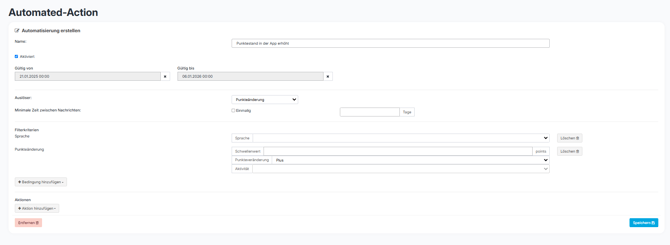
Example: Customers receive a notification as soon as their points balance increases in the app.
1️⃣ Navigiere zu Automatisierungen
Im Dashboard unter weitere Tools → Automatisierungen findest du eine Übersicht aller bereits erstellten Prozesse.
2️⃣ Create a new automation
Click on + New Automation to configure a new action.
3️⃣ Specify details
- Name: Give your automation a meaningful name.
- Activate: Check the box next to "Activated" to activate the automation immediately.
- Validity period: Set the start and end dates if the automation should only be active for a specific period.
4️⃣ Define triggers and conditions
- Trigger: Select the desired trigger (e.g., point change, birthday, registration).
- Add conditions: Click on + Add condition to set specific filter criteria such as language, threshold value, or point change.
5️⃣ Add actions
- Click on + Add action and define which action should be performed (e.g., add points, send message, assign segment).
- Optional: Set additional parameters such as point changes or personalized messages.
6️⃣ Save and activate
Click Save to save your automation. Make sure it is activated to start immediately. 🎉
OR
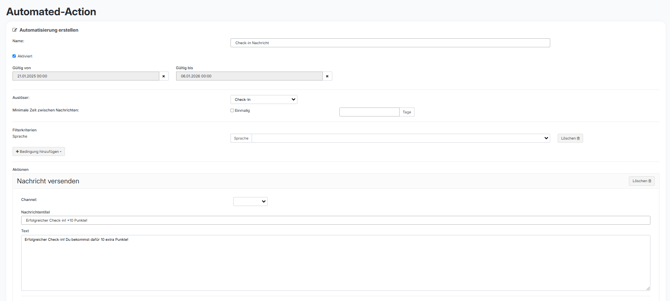
Example: After check-in, a thank-you push notification and/or email should be sent to the customer.
1️⃣ Name and activation:
Give the automation a suitable name and activate it by checking the "Activated" box.
2️⃣ Set time period:
Define the time period during which the automation should be active (Valid from/Valid until).
3️⃣ Define trigger:
Select the trigger that should start the action. Here, "Check-in" was set as the trigger.
4️⃣ Add filter criteria:
Set filters such as "language" to narrow down the target audience.
5️⃣ Configure actions:
Select which action should be performed, e.g., "Send message." Here, a message title ("Successful check-in! +10 points") and text have been defined.
6️⃣ Save:
Finally, click "Save" to activate the automation.
Automation brings structure and efficiency to your customer communications—without any extra effort!