The dashboard provides a detailed overview of a user's activity. It displays an overview of all points collected and redeemed, allowing the user to check that their points balance is correct.
💡 To view and export a customer's points balance, follow these steps:
-
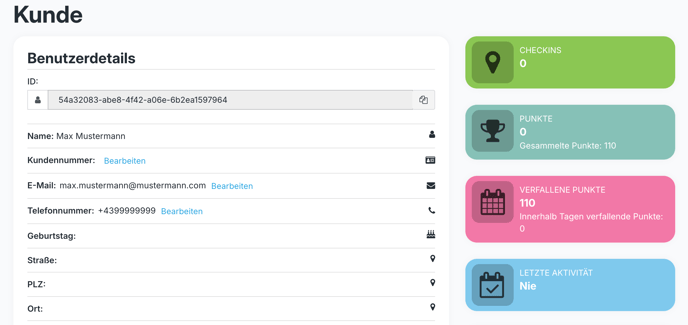
Log in to the dashboard and search for the desired customer in the search bar.
-
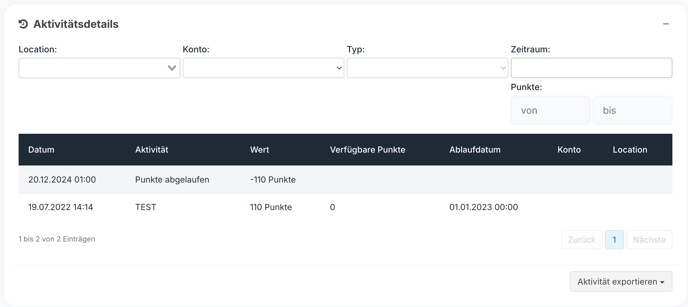
Open the customer's details. Scroll down to the "Activity Details" section.
-
Here you can see every type of point transaction in chronological order.
-
You also have the option of downloading this history as an Excel file so that you can track all activities.
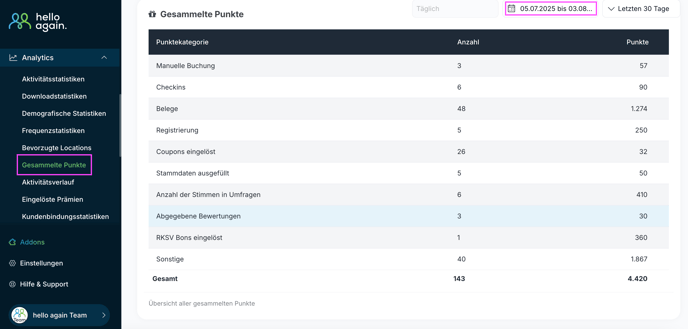
📈 The dashboard also provides a detailed overview of all users' activities.
-
Log in to the dashboard.
-
Navigate to the "Analytics" menu item.
-
There you will find the "Points collected" section.
-
This overview shows you all the points your users have collected through actions such as registration, birthdays, or other types of points .
This allows you to track how your users' points have been used at any time.