To make it easier to redeem the reward at the checkout, you can display the product code/item code as an EAN or QR code in the app. If your checkout supports this function, you can use this display mode for rewards that are handed over in-store .
In the reward details, you will find the Custom ID field. Here you can enter your product code/item code from the checkout. This will then be displayed as a barcode or QR code. At the checkout, this will be scanned and the item will be added to your shopping cart.
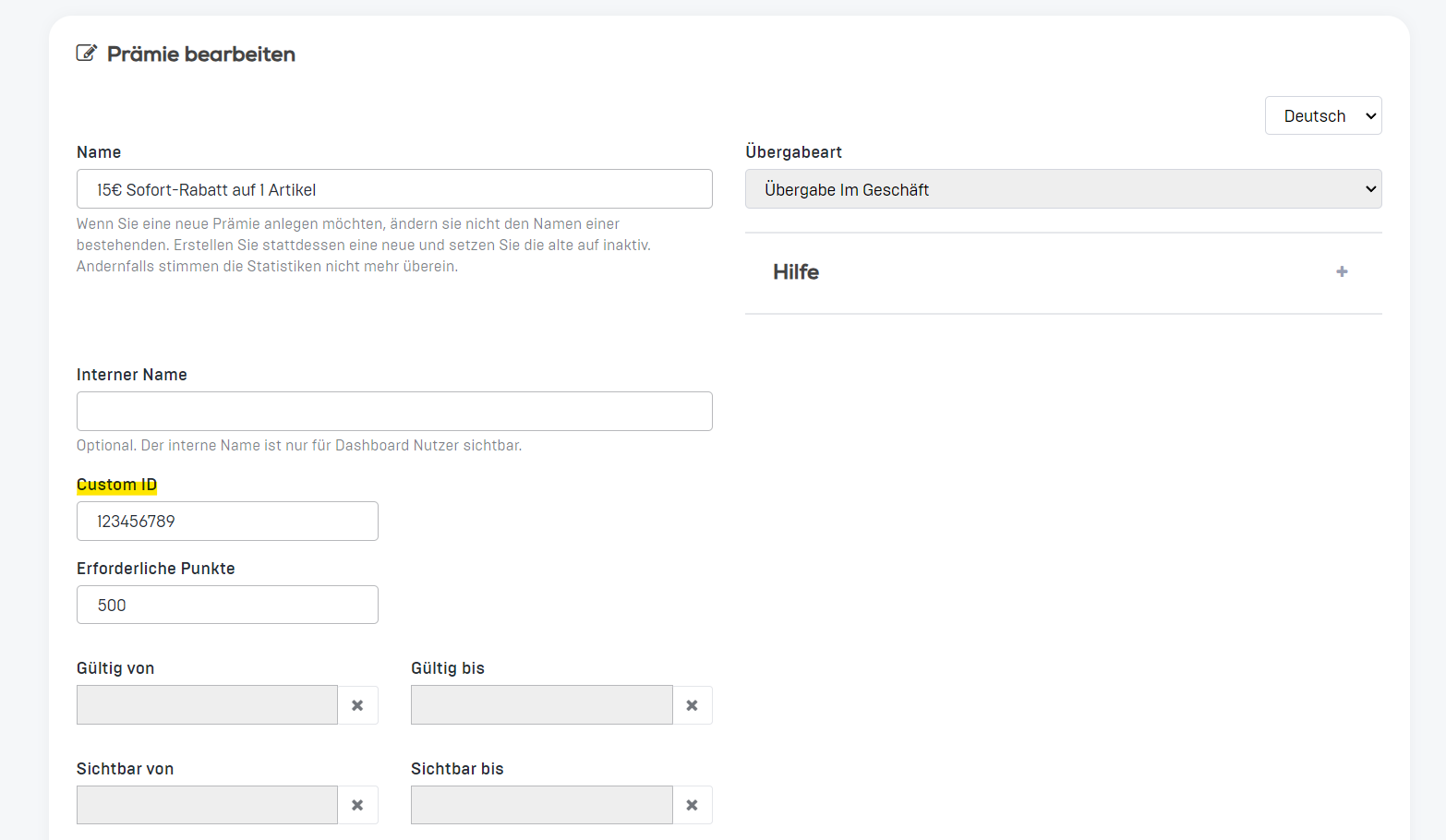
The followingrequirements must be met:
- The cash register can generate a product code for a premium.
- The cash register/scanner can read digital barcodes/QR codes.
- The app is configured accordingly and it has been determined whether a barcode or QR code display is desired. If you do not see the Custom ID field in the dashboard, please contact our support team so that we can schedule the appropriate settings in the next app update.