Note: If you use HelloAgain templates for your newsletters, they already have an unsubscribe link integrated by default.
Step-by-step instructions: Insert newsletter unsubscribe link
There are two ways to allow app users to unsubscribe from the newsletter: via a button or via a special link in the text field.
1. Insert unsubscribe button
1. Log in to the dashboard:
-
- Navigate to Communication > New Campaign.
- Choose the email channel.
- Select a one-time or automated campaign.
2. Select a template or create a new message:
-
- Select a pre-made or saved template, or click Skip to create a new message.
- Note: Regardless of the type of email you send, you can always add an unsubscribe option.
3. Add button:
-
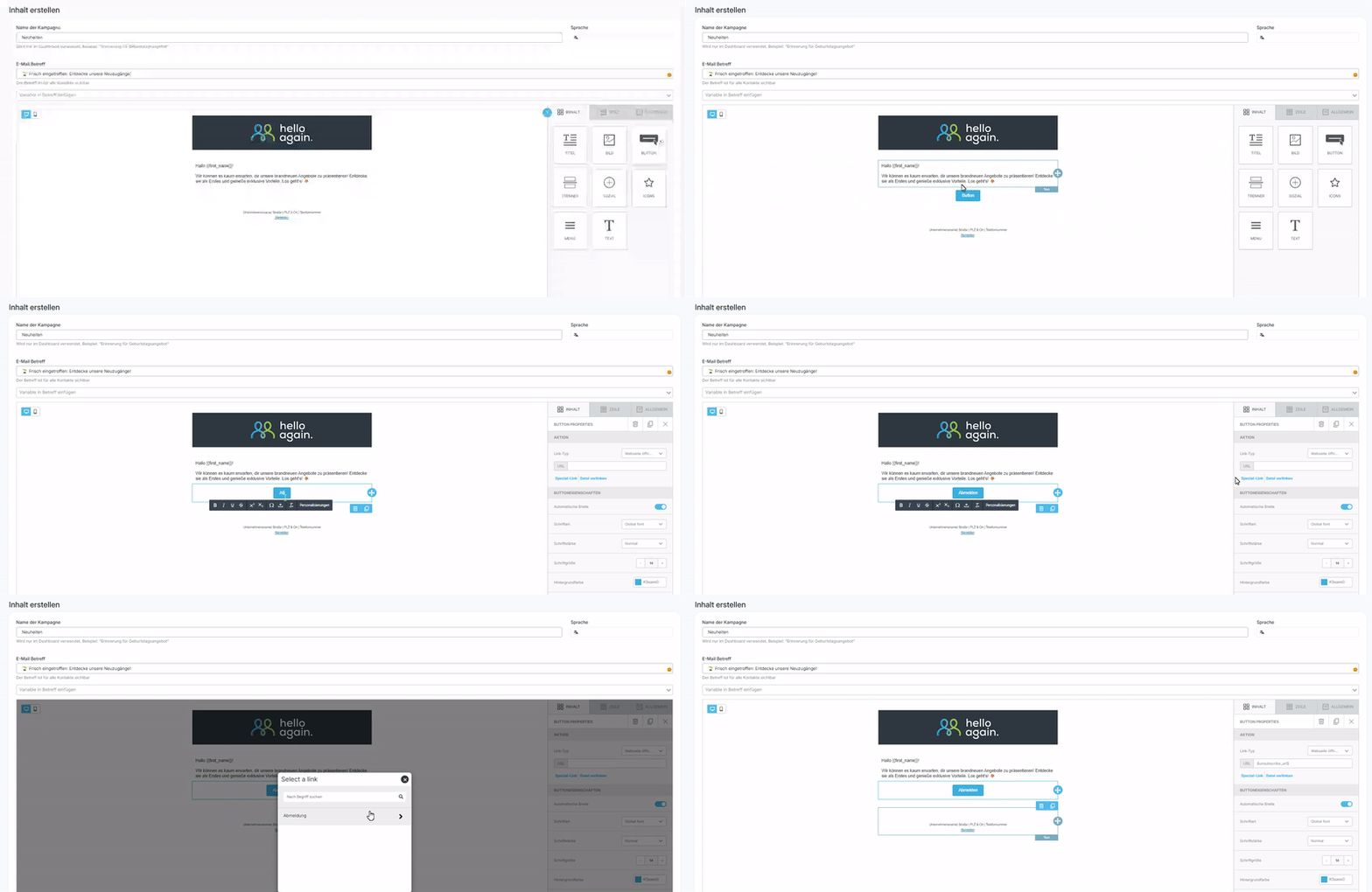
- Go to the Content tab in the right-hand pane.
- Select the Button sub-item and drag and drop it into the text field.
- Place the button in the desired position and rename it, e.g., Log out.
- Click on the inserted button. A window with the content properties will appear on the left.
- Under Action > Link Type, select Special Link.
- Click on Link > Logout > Logout.
4. Save:
-
- Click Save to activate the logout button.
2. Insert special link in text field
1. Log in to the dashboard:
-
- Go to Communication > New Campaign.
- Select a one-time or automated campaign and the email channel.
2. Select a template or create a new message:
-
- Select a pre-made or saved template, or click Skip to create a new message.
3. Edit text field:
-
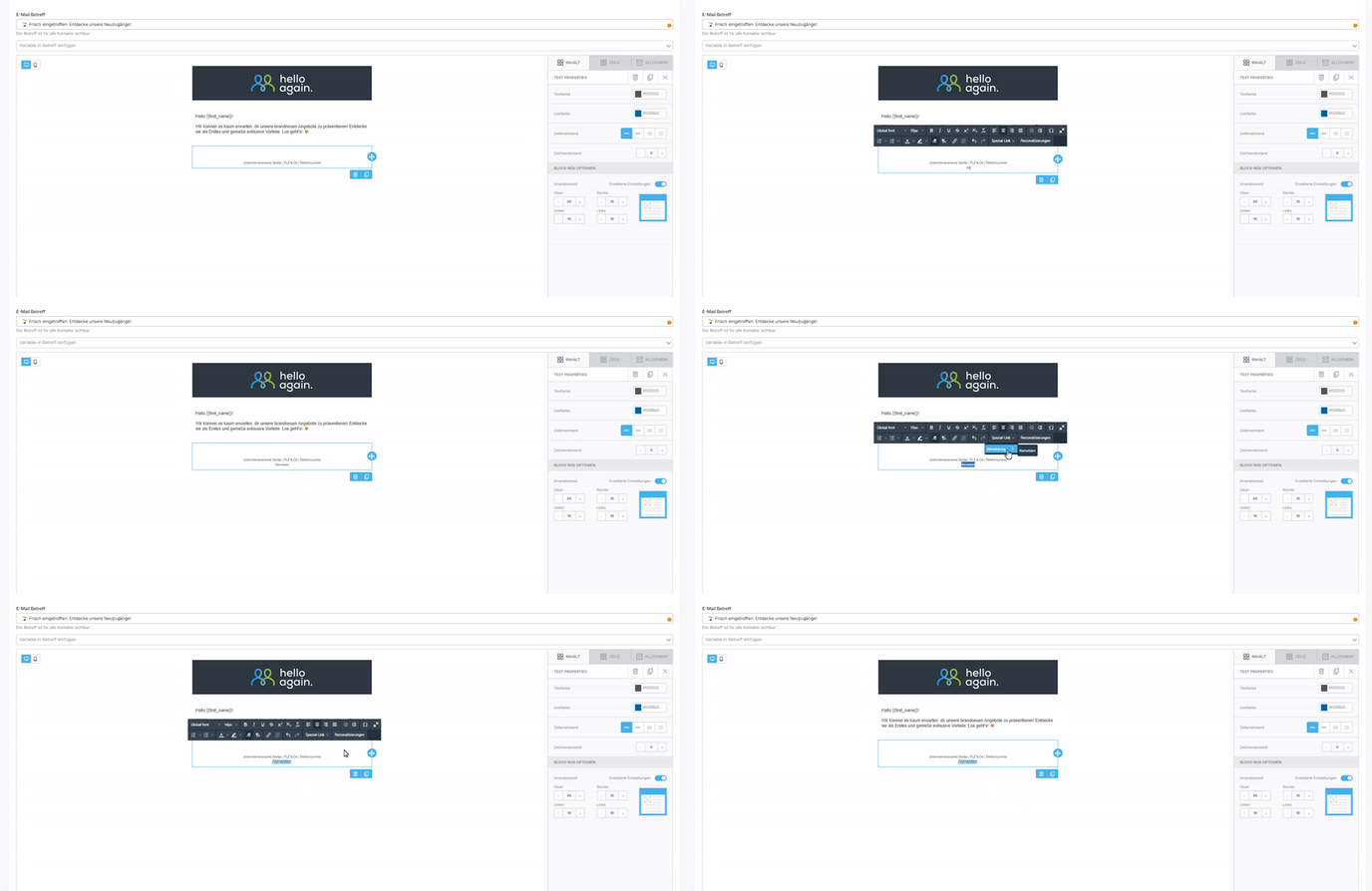
- Type the desired text into the text field, e.g. , "Click here to unsubscribe from the newsletter. "
- Select the text and open the editing bar above the text field by double-clicking on the text.
- Click on Special Link in the editing bar.
- Select Logouts > Logout.
4. Save:
-
- Click Save to activate the unsubscribe link.