You have two options for creating your campaigns:
- As a one-time campaign
- As an automated campaign
Both are possible in the form of an email, push notification, or SMS.
This article focuses specifically on push notifications.
One-time campaign | e.g., new products, Mother's Day, new opening hours, etc.
Automated campaign | e.g., birthday or immediately after a purchase
When does it make sense to create an automated campaign?
- Recurring events: Birthday greetings or anniversaries can be sent to customers automatically and personalized.
- After a specific trigger: Automated campaigns are useful when a thank-you message or a suggestion for complementary products needs to be sent after a specific event, such as a purchase.
- Maximize customer benefits: To optimize the customer journey, automatic reminders for bonus points, unredeemed rewards, or feedback surveys can be set up.
- Time savings: Automated campaigns save resources in the long term, as they only need to be set up once and can then be sent out without any further effort.
Step-by-step guide | Creating an automated campaign as a push notification for your customers' birthdays
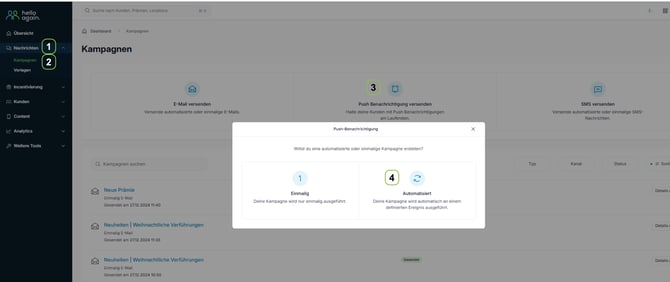
1. & 2. Open campaign area
- In the main menu on the left, click on "Messages" and then on "Campaign."
3. Determine the type of campaign
- In the upper section, you can choose whether you want to send an email, a push notification, or a text message.
- For this example, select "Send email. "
4. Determine the type of campaign
- You can choose between a one-time campaign (e.g., Advent or Easter) or an automated campaign (e.g., for birthdays).
- For this example, click on "Automatic Campaign."
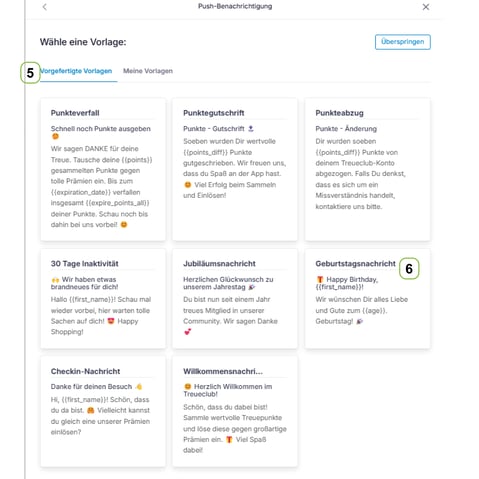
5. Select the template type
- There are two tabs at the top of the window:
- Pre-designed templates (standard templates).
- My templates (my own templates, if already created).
- For this example, select the tab "Ready-made templates".
6. Browse the ready-made templates
- Choose from a variety of pre-built templates designed specifically for certain scenarios.
- Examples:
- Point expiration: Reminder of points that will expire soon.
- Point credit: Information about credited points.
- 30 days of inactivity: Incentive for inactive customers to return.
- Birthday message: Congratulatory message on the customer's birthday.
- For this example, select the "Birthday Message" tab.
Skip (optional):
- If you don't need a template, you can select the "Skip" option in the top right corner to create your own message from scratch.
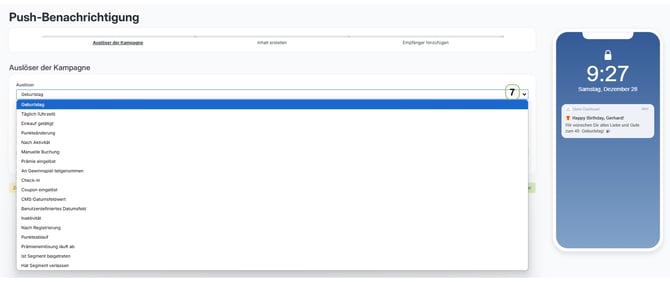
7. Select "Birthday" as the trigger.
- Open the drop-down menu in the "Campaign trigger" section.
- Select "Birthday" from the list of available triggers.
- On the right, you can see a preview of the message.
- Click "Continue" to complete.
Other trigger options
In addition to birthdays, you can use the following triggers:
- Daily (time): Regular reminders.
- Purchase made: Messages after a purchase.
- Point change: Info about changes to the score.
- Inactivity: Recovering inactive users.
- After registration: Welcome message for new members.
These options enable flexible notification design to address various customer actions.
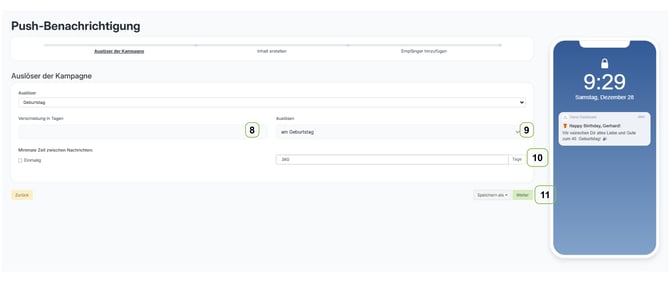
8. Configure the trigger
-
- Select when the notification should be sent:
- "On the birthday" or with a shift in days (e.g., a few days before/after the birthday).
- Select when the notification should be sent:
9. Define the time interval
-
- Specify how many days after the birthday a message should be delayed, if necessary.
10. Set a frequency control
-
- Select "One-time" if the message should only be sent once per customer.
11. Save and continue
-
- Click "Save as" to save the campaign as a template.
- or "Continue" to complete the campaign.
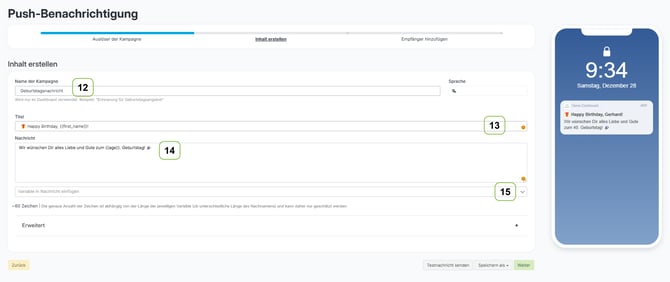
12. Set campaign names
- Give the campaign an internal name that is visible in the dashboard.
- Example: "Birthday message."
13. Enter the title of the message
-
- Come up with an appealing title for the notification.
- Use placeholders to personalize the message. You can do this with the "Insert variable into message" option (15).
- Example: Click on "Insert variable into message," select
and paste it into the title:
"🎁 Happy Birthday, !"
14. Create message text
-
- Write the message that will be sent to the recipients.
- Also use the "Insert variable into message" option (15) to add dynamic content, such as
. - Example: "We wish you all the best on your birthday! 🎉".
15. Insert variable (optional)
-
- Use the "Insert variable into message" button to add additional dynamic content such as the first name or age.
-
Check preview:
- On the right side, the message is displayed as a preview of how it will appear on the recipient's device. Check that the variables are displayed correctly.
-
Save or send test message:
- Select "Send test message" to check the message beforehand.
- Alternatively, click "Save as" to save the message.
-
Continue clicking:
- Once all content has been finalized, click "Next" to select the recipients.
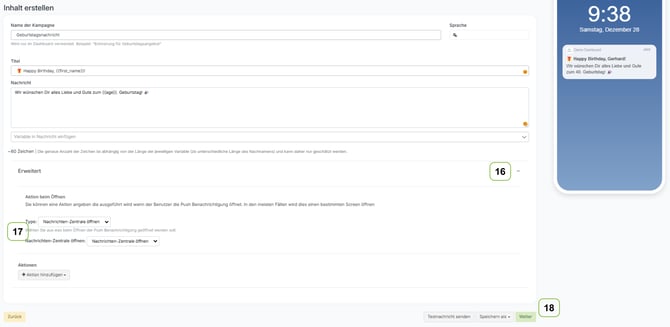
16. Open Advanced Options
-
- Click on the "Advanced" section to configure additional settings for the action when opening the push notification.
Advanced option | Want to know more? "Help"
17. Define action on opening
-
- Select what should happen when the user opens the push notification.
- Examples:
- Open message center: Takes the user to the message overview on their smartphone.
18. Save or test:
-
- Send test message (bottom right): Send a sample notification to check how the message will appear to the recipient.
- Save as draft: Save the current version of the message.
-
Continue clicking (18):
- Once all content and settings have been checked, click "Continue" to proceed to the recipient selection screen.
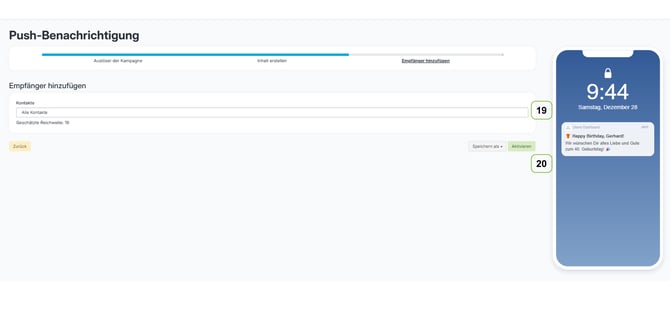
19. Select recipient
-
- In the "Contacts" section, select who should receive the push notification:
- All contacts: Sends the message to all saved recipients.
But only on their birthday!
- All contacts: Sends the message to all saved recipients.
- In the "Contacts" section, select who should receive the push notification:
-
-
- Filtered contacts: Use filter options to select specific groups or segments.
- "Estimated reach" shows how many recipients the message is expected to reach (e.g., 19 contacts).
-
-
Review message (preview):
- The preview of the notification as it will appear on the recipient's device is displayed on the right-hand side. Check the text, placeholders, and formatting.
20. Save or activate campaign
-
- Save as: Select this option to save the campaign as a draft if you want to work on it later.
- Activate: Click "Activate" to immediately launch the campaign and send the message to the selected recipients.
-
Back or Next:
- If changes are necessary, you can use "Back" to return to previous steps.
- When the campaign is final, confirm activation and complete the process.
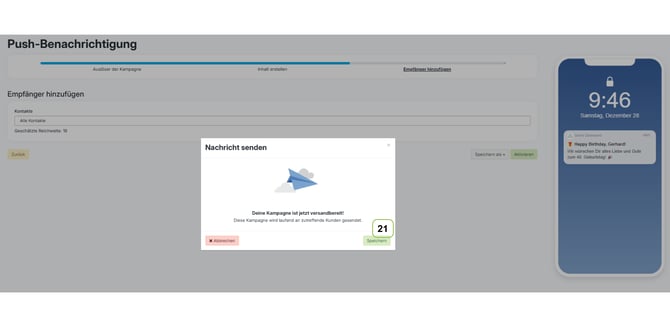
20. Send campaign:
- A pop-up window will appear with the message: "Your campaign is now ready to be sent!"
- Click "Save" to send the message.
Check success:
- After sending, you can view the status and statistics of the campaign in the campaign dashboard (e.g., delivered, opened, and clicked messages).
Campaign results | What does this page offer? Help