Overview of forms
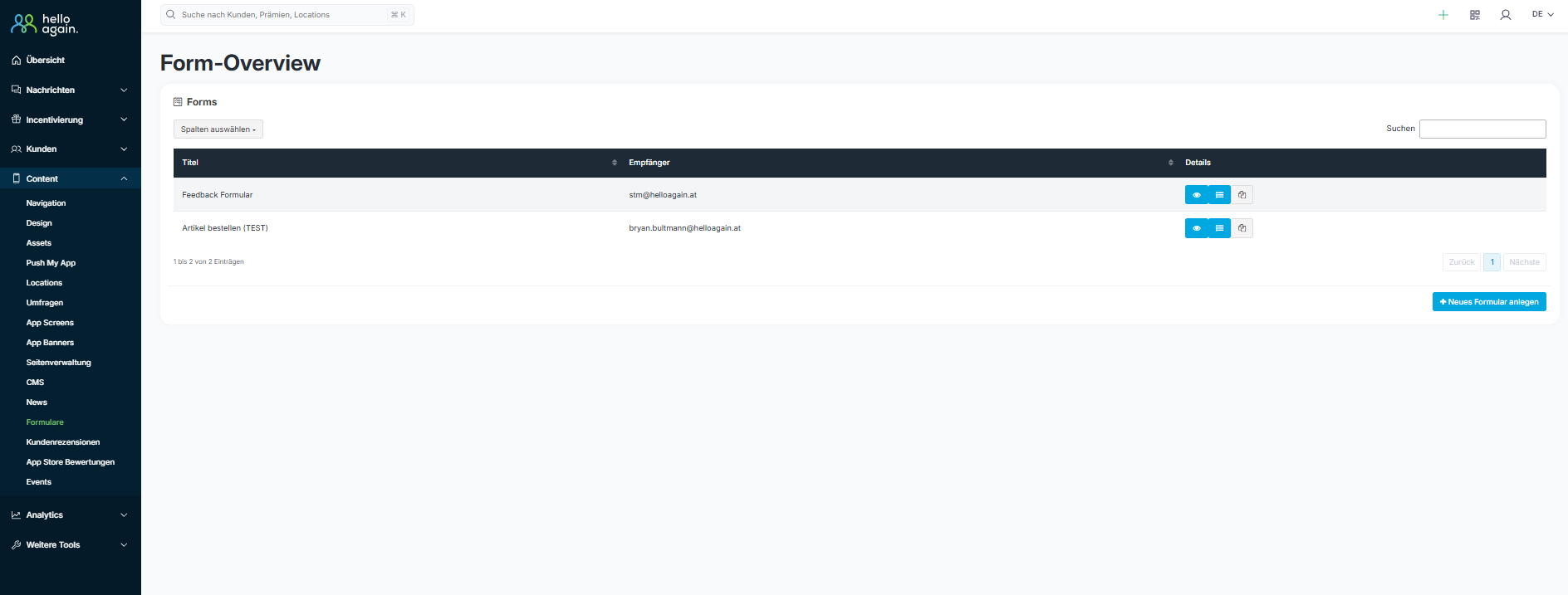
In the form overview, you will find a list of all the forms you have created.
There you can:
- Title: View the name of the form.
- Recipient: The email address to which incoming form responses are sent.
- View details: You can view the details of the form and edit it by clicking on the eye icon.

- List icon: Contains a list of all customers who have already filled out and submitted the form.

Create a new form
Creating a new form is easy and offers numerous customization options for collecting specific information from customers.
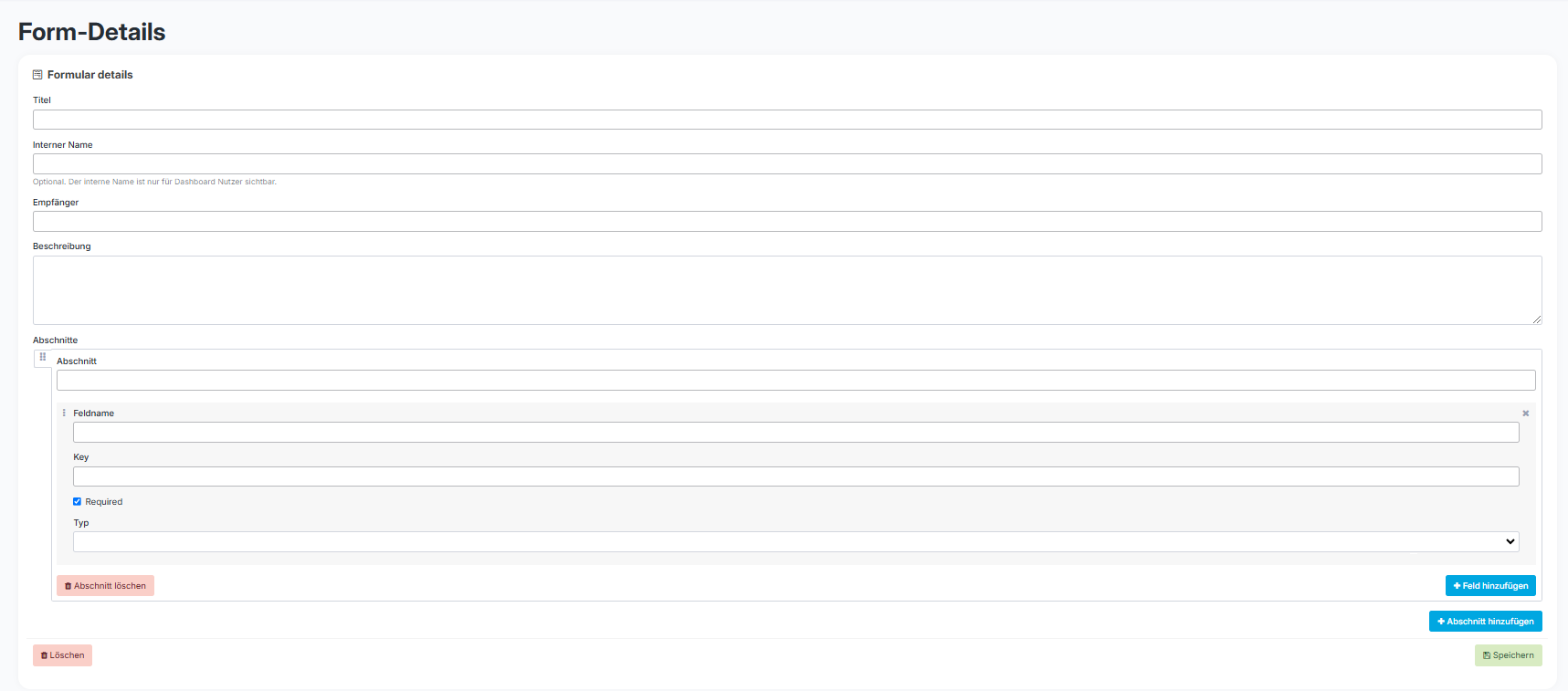
1️⃣ Title and internal name
- Enter a title for the form that will be displayed in the app.
- The internal name is optional and serves as an overview in the dashboard.
2️⃣ Define recipients
- Enter the email address to which the completed forms should be sent.
3️⃣ Add description
- Add a description that explains the purpose of the form. This description will be displayed in the app.
4️⃣ Add sections and fields
- Create different sections to structure the form.
- Add fields that request the desired information, such as text, selection, or checkboxes.
- Select whether a field is mandatory (check the "Required" checkbox).
5️⃣ Select field type
- Define the type of field (e.g., text, dropdown, date) to customize the input accordingly.
6️⃣ Save
- Once all settings have been made, click Save to create the form.
The form is then displayed in the form overview, where it can be edited or deleted at any time.
Video tutorial🎥
For detailed step-by-step instructions, you can watch the video tutorial.