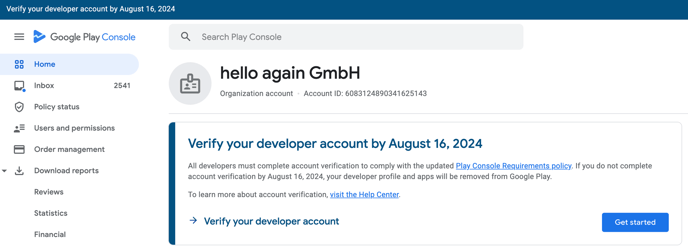
1. Log in with Google Login. Click on the blue button at the bottom right.
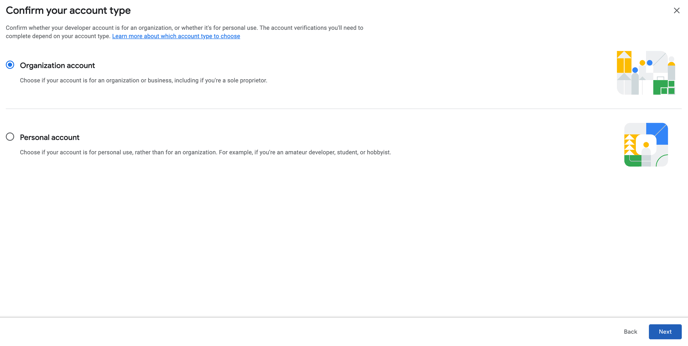
2. Select "Organization" and click Continue.
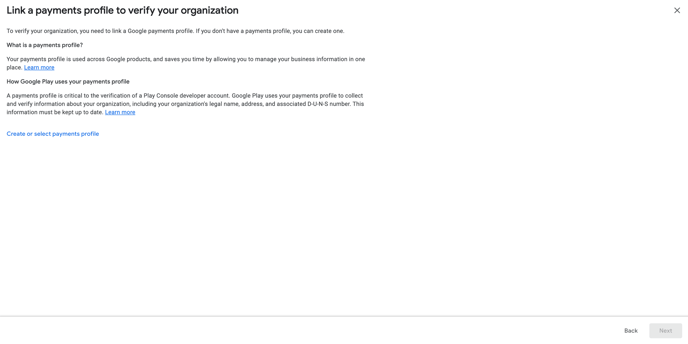
3. Add a payment profile and click Continue. (Here you must enter the DUNS NUMBER—see next step)
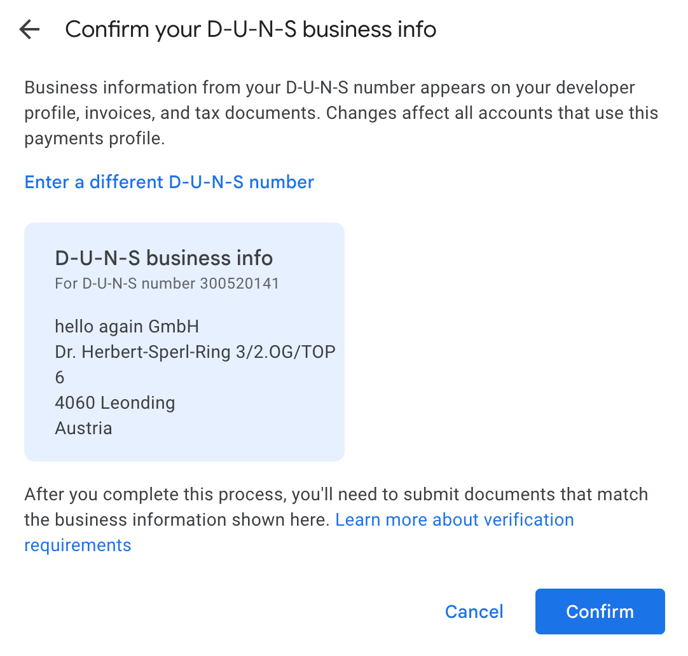
4. Enter your organization's D-U-N-S number and click Confirm.
5. Review and, if necessary, update your organization details, then click Continue.
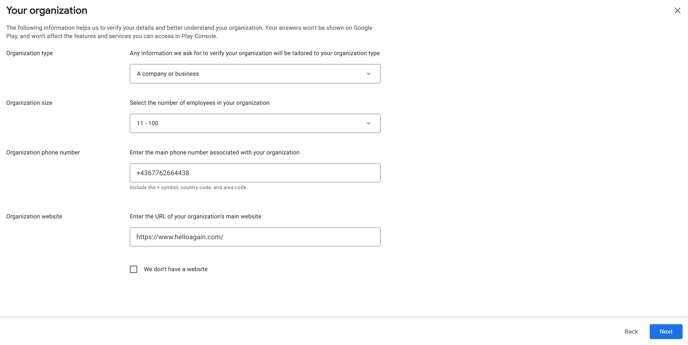
6. Now enter a contact person and verify your email address and phone number, which may be publicly visible, using confirmation codes, then click Continue.
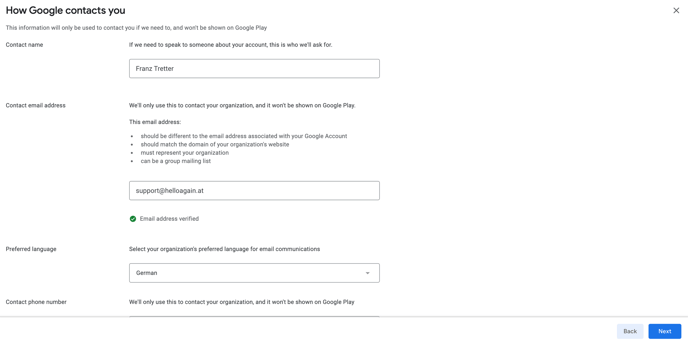
7. Now add your developer account and click Continue.
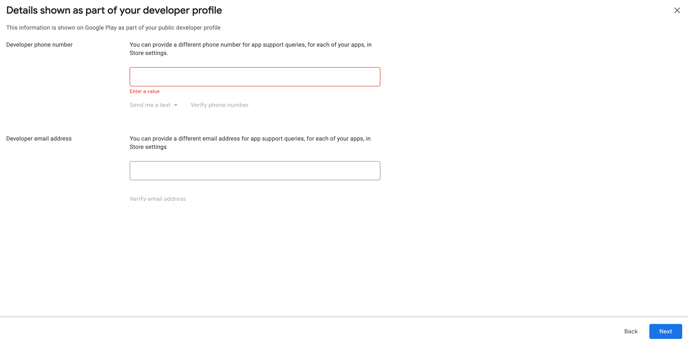
8. Check your details again and click on Save.
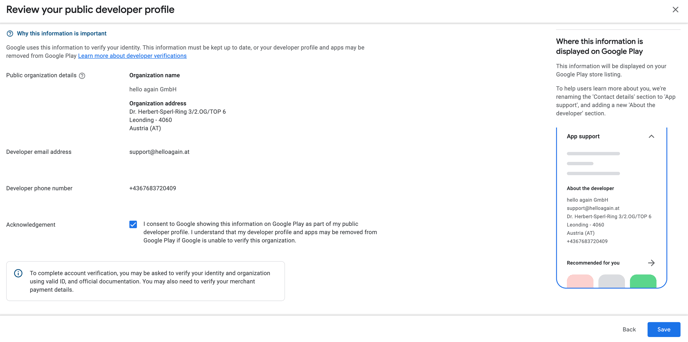
9. Now restart the verification process to upload your company documents.
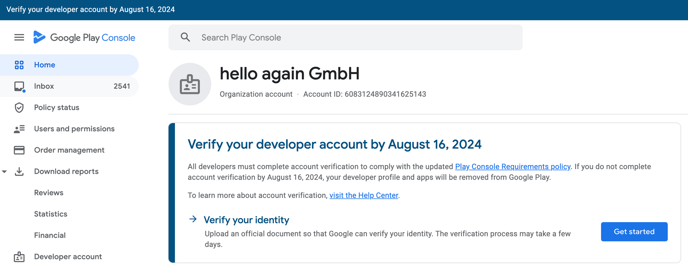
10. Upload the following documents:
- company register extract
- ID / Passport
- Enter your address
11. Once this has been confirmed, the website verification is still pending. To do this, go toAccount Details in your Google Developer Account. Scroll down to theWebsite section.
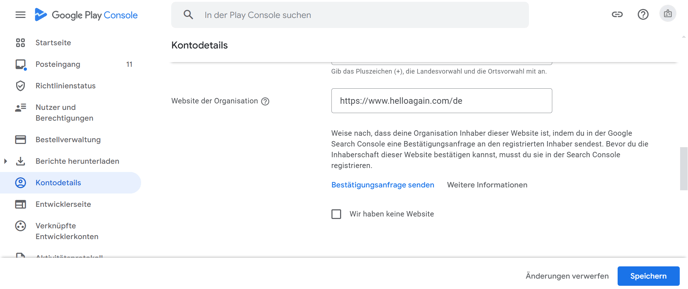
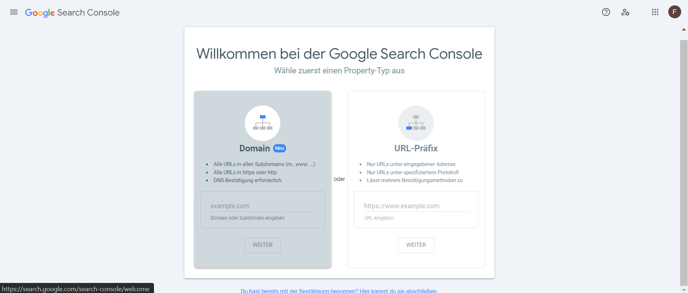
12. If you have not yet created a Search Console entry, do so at:
https://search.google.com/search-console/welcome
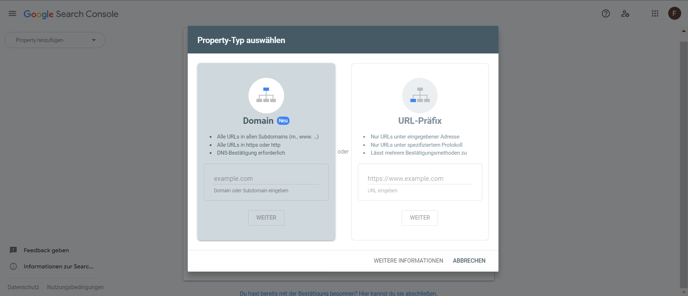
13. Click on the menu in the top left corner and create a new property.
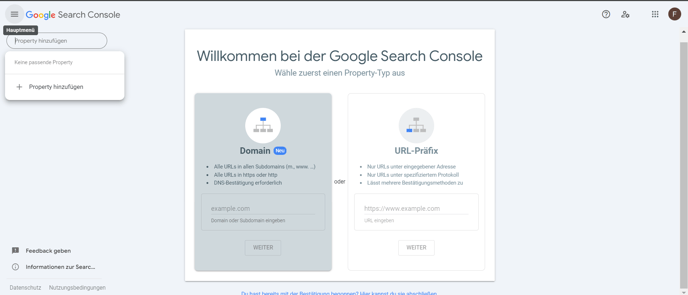
14. Then enter the website domain and click Continue.
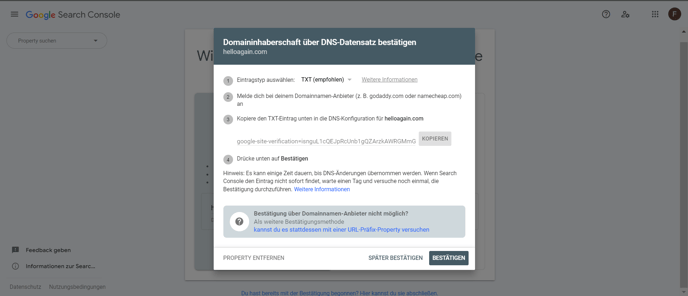
15. Now copy the TXT entry and add it to your website domain as a DNS entry.
16. Wait for your verification to be reviewed and let us know as soon as it has been confirmed at support@helloagain.at.