Customers can provide specific feedback using the app's own rating system. After certain actions (e.g., invoice scanning), they are prompted to submit a rating directly in the app.
- Rating scale: 1-5 stars.
- Possible actions for a rating request:
- After invoice scan.
- After check-in.
- After scanning the coupon (QR code).
Points and forwarding 📈
- X points can be awarded for each rating submitted.
- Optional: Reviews can be collected per location.
- Positive reviews:
- If the rating is X stars or higher, the customer is asked if they would like to be redirected to Facebook or Google to leave a review there as well.
Overview of reviews 📊
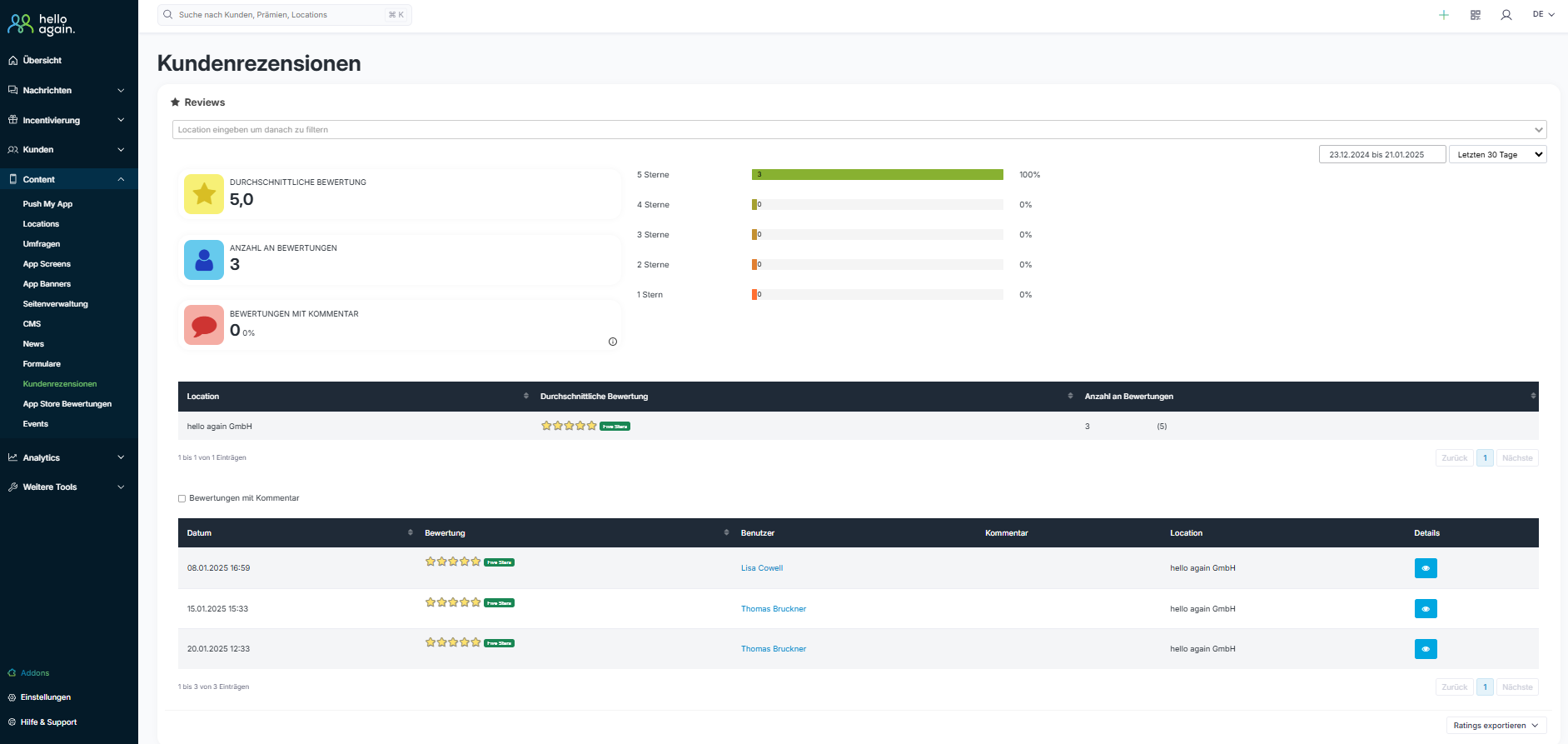
In the dashboard under Content - > Customer Reviews - >
Are important key figures displayed at the top of the page?
- Average rating: Shows the average rating from your customers (e.g., 5.0 stars).
- Number of reviews: Indicates the total number of reviews submitted.
- Ratings with comments: Percentage of ratings that also include a comment.
Filter and display options 🔍
You can filter the reviews according to the following criteria:
- Location: Select specific locations to perform targeted analyses.
- Time period: Analyze reviews for a specific time period (e.g., last 30 days).
- Reviews with comments: Optionally, you can choose to display only reviews with comments.
Details about the ratings 📋
The table lists the reviews in detail:
- Date: The date on which the rating was submitted.
- Rating: Number of stars awarded (e.g., 5 stars).
- User: Name of the person who submitted the review.
- Comment: If available, you can view customer comments here.
- Location: The associated location for which the rating was given.
- Details: Click on the eye icon to view more information about the rating.
Export reviews 📂
You can download all ratings as a CSV file using the "Export ratings" button. This allows you to easily process and analyze the data outside of the dashboard.
Example of the view in the app:
This is what the rating request looks like in the app:
Customers are kindly asked how satisfied they are with the service. By submitting a rating, they can collect additional points. They also have the option of leaving feedback.

This user-friendly view encourages customers to provide feedback quickly and easily. 🌟