⚠ Note
This article is intended exclusively for customers who do not use our point-of-sale solution .
💡 You can use the menu item "Scan RKSV/TSE" .
How it works: Upload invoices to the app
1. Photograph the invoice
As soon as customers receive an invoice, they can simply photograph it with their smartphone.
- Open the app and go to "Archive new receipt."
- Take a photo of the bill with your smartphone.
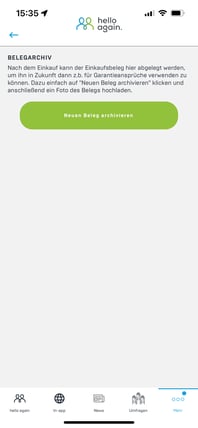
2. Upload invoice
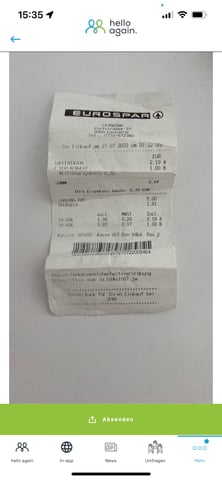
The images you take will be uploaded directly to the app.
- The photo is uploaded directly to the app.
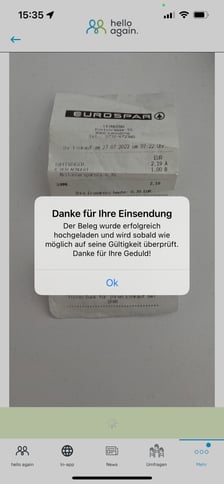
- Confirm the upload by clicking on "Submit."
Note: Customers receive a confirmation message that the receipt has been submitted and is being checked.
3. Check and process invoices
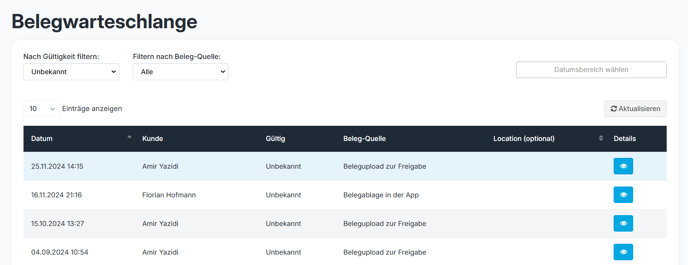
- You can find all uploaded invoices at:
Tools → Document queue - You can check all uploaded invoices here:
-
- Approve: If everything is correct.
- Reject: In the case of incorrect or incomplete documents.
Steps for processing
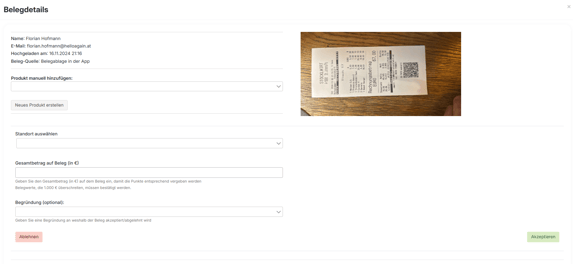
1. Go to Dashboard -> More Tools: Click on the blue eye in the receipt list to open the receipt details.
-
- Here you can see information such as:
- Name
- Uploaded on: Date
- Here you can see information such as:
2. Fill in the following fields:
-
- location
- Total amount of the receipt
- Reason (only required in case of rejection)
3. Select an action:
-
- Accept (green): Points will be credited.
- Reject (red): With a reason given.
4. Automatic notification
Once the receipt has been processed, the customer receives a notification:
- If accepted: The points have been credited.
- If rejected: The document has been rejected.
Benefits for customers
- Quick submission: Easy to use directly via the app.
- Efficient processing: Clearly structured processes in the dashboard.
- Transparent feedback: Customers are immediately informed about the status.