What is the App Editor?
The App Editor allows you to edit your app quickly and easily yourself.
You can customize content, add new tabs, and publish changes immediately—without any technical expertise or waiting for app store approvals.
Your benefits
-
Fast and flexible: make changes yourself at any time
-
Innovative: Try out new content and features right away
-
Simple: No technical knowledge required
Where can I find the App Editor?
You can find the App Editor at any time in the menu bar at the top right of your dashboard.

🚀 App package & plan:
Depending on your app package and plan , different features are available to you in the App Editor.
Your app package (Basic, Advanced, Premium) determines the range of functionsavailable in the editor—for example, whether you can name tabs or move, hide, add, and delete them.
Your plan (Starter, Plus, Pro) determines which content and design elements are activated for you in the editor—i.e., which additional tabs, color and font variants, and your own images/assets you can use.
| plan | |
| starter |
Edit tab names Customize translations |
| Plus |
Edit tab names Customize translations Additionally: Move tabs Use the "Surveys" and "Submenu Items" tabs. |
| Pro |
Includes everything from Starter and Plus. Additionally: Use the "Stamp Passports" and "Challenges" tabs |
If you would like more features or to upgrade your app package or plan, simply contact your Customer Success Manager or send us an email at support@helloagain.com – we will be happy to advise you.
| plan | |
| starter |
Add, move, delete, hide tabs Change tab icons Customize colors, fonts, and your own images/assets in the navigation area |
| Plus & Pro |
All functions from Starter Create up to 8 tabs Use the "Surveys" and "Submenu Items" tabs. |
What is a tab icon?
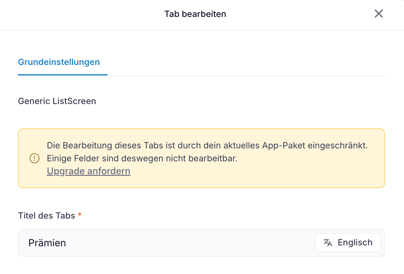
💡 If you see a message while editing, this type of change is not included in your current plan:
| plan |
|
| starter |
Add, move, delete, hide tabs Change tab icons Customize colors, fonts, and your own images/assets in the navigation area Create up to 15 tabs |
| Plus & Pro |
All functions from Starter Create and manage up to 15 tabs Add, edit, move, and hide content tabs such as "Surveys," submenu items, "Stamp Passports," and "Challenges." |
Interactive tour
Here you will find step-by-step instructions for using the App Editor.
The interactive tour shows you right in the dashboard how you can easily edit tabs, content, and settings yourself.
Preview and release 📱
Before you publish your changes, you can test them:
-
Quick preview in the dashboard: Instantly shows what your app will look like after customization.
-
Live preview on your smartphone: Click on the live preview button at the top right next to "Publish" and hold your smartphone camera over the QR code that appears—your app will open automatically and show you your current changes right away.

-
Publish: Once you are satisfied with all the adjustments, click on the blue "Publish" button.

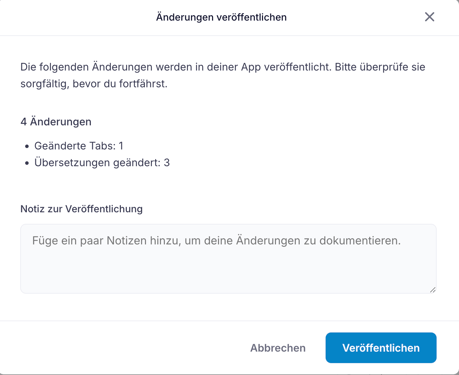
The publication screen will then open again.
In the "Note on publication" field, we recommend that you briefly describe your changes—this will help you keep track of past adjustments.