1️⃣ Overview of app banners
In the app banner overview, you can see all banners that have already been created. Here you can:
- View status: Whether the banner is enabled or disabled.
- Edit details: Click the "Details" button to access the banner configuration.
- Create a new banner: Click on "+ Create app banner" to add a new banner.
2️⃣ Create app banners
Step-by-step instructions
1️⃣ Overview:
In the dashboard, you will find a list of all active app banners.
- Status: Indicates whether a banner is activated.
- Actions: Edit or view details.
2️⃣ Configure banner details:
- Key: Unique identifier to identify the banner in the system.
- Internal name: For a better overview in the dashboard (optional).
- Banner size: The standard size is 1200 x 704 px.
-
New banner sizes
Small = 1200 x 350 px
Regular = 1200 x 704 px
Large = 1200 x 1200 px
-
- Slide duration: Set how long a slide is displayed.
- Activation: Activate the banner to make it visible in the app.
➡️ Save: Complete the setup.
Add slides
Slides allow you to present multiple pieces of content within a banner.
1️⃣ Create a slide:
- Name: Internal title for the slide.
- Image: Upload the image for the slide.
- Order: Determine the position at which the slide is displayed.
- Visibility: Specify when the slide is displayed.
- Segment: Select target audience segments that should see the slide.
- Action: Define what happens when the slide is clicked (e.g., redirect to a page).
- The graphic can be linked to a bonus / website / location / competition.
- The graphic can be linked to a bonus / website / location / competition.
2️⃣ Save:
After configuration, you can activate the slide and display it in your banner.
Video tutorial on how to create your app banner:
.
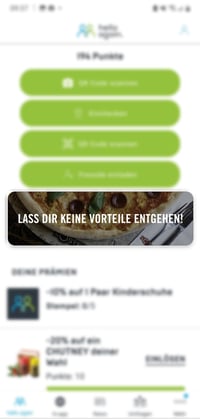
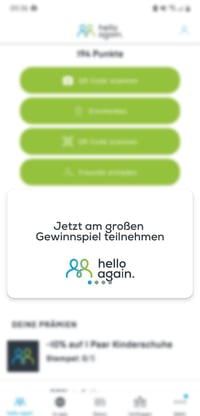
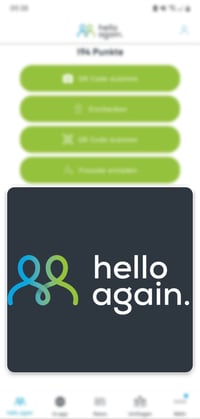
This is how your banner could appear in the mobile app:
You can integrate an advertising banner into your app to draw attention to special promotions. This feature is already in use by some of our customers and is very popular. See for yourself, e.g., with the Müller app.
New banner sizes for flexible design:
This is how your banner could be displayed in the mobile app.
|
|
|
Why use app banners and slides?
App banners and slides allow you to present content in a dynamic and appealing way. Use them to promote campaigns, advertise new products, or communicate important information to your customers in a targeted manner. 🛍️🎯