There are two options you can add to allow app users to unsubscribe from the newsletter.
- Button variant
-
-
Melde dich in deinem Dashboard an. Unter 'Nachrichten' > 'Kampagne' > 'Email' kann zwischen einer 'einmaligen' oder 'automatisierten Email' gewählt werden. Entscheide dich für eine Variante.
- Entscheide dich zwischen einer 'vorgefertigten', einer 'gespeicherten' Vorlage oder 'ohne Vorlage fortfahren' und erstelle eine Neue.
- A field appears on the right-hand side—in the bar, you can choose between 'Content,' 'Line,' and 'General.'
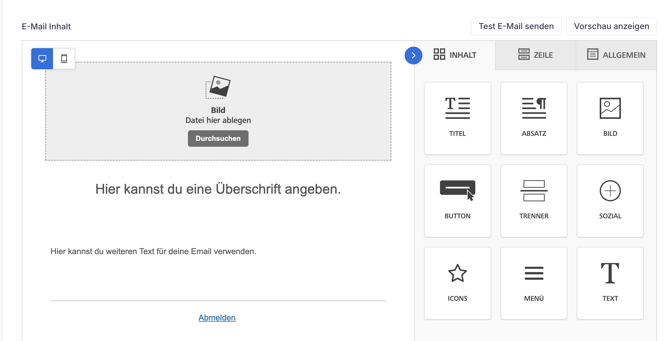
- Stay in the 'Content' field, where various editing options are also listed.
- Here you will find the sub-item "BUTTON."
- Drag and drop it into the text field with the right mouse button, decide on the position yourself, and change the name "Button" to "Log out."
- Press the 'Logout' button and a window will pop up on the left-hand side with 'Content Properties'. Under 'Action' > 'Link Type', you will find the 'Special Link'.
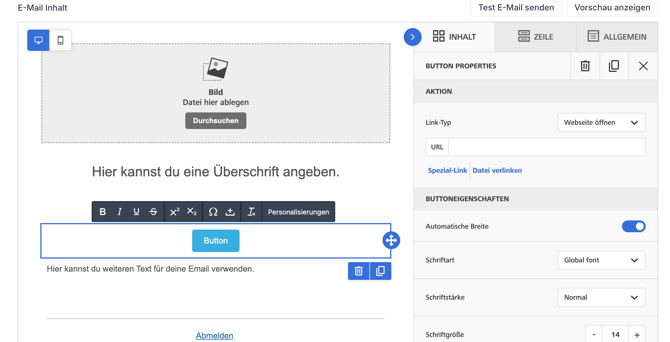
- Select 'Link' -> 'Unsubscribe' -> click + 'Unsubscribe'.
- After clicking on 'Save', the 'Logout button' was activated.
-
- Special link in the text field
-
- Melde dich in deinem Dashboard an. Unter 'Nachrichten' > 'Kampagne' > 'Email' kann zwischen einer 'einmaligen' oder 'automatisierten Kampagne' gewählt werden.
- Entscheide dich zwischen einer 'vorgefertigten', einer 'gespeicherten' Vorlage oder > 'ohne Vorlage fortfahren' und erstelle eine Neue.
- Insert any text into the text field. An editing bar will appear above the text field, where the 'Special Link' will be displayed.
- Insert this at the end of the text under 'Special Link' -> 'Unsubscribe' -> 'Unsubscribe'.
- After clicking "Save," the "Unsubscribe Link" has been activated.
You can also find detailed instructions here .