To do this, go to Content > Locations, select the desired location, and scroll down to the "Cash registers" section.
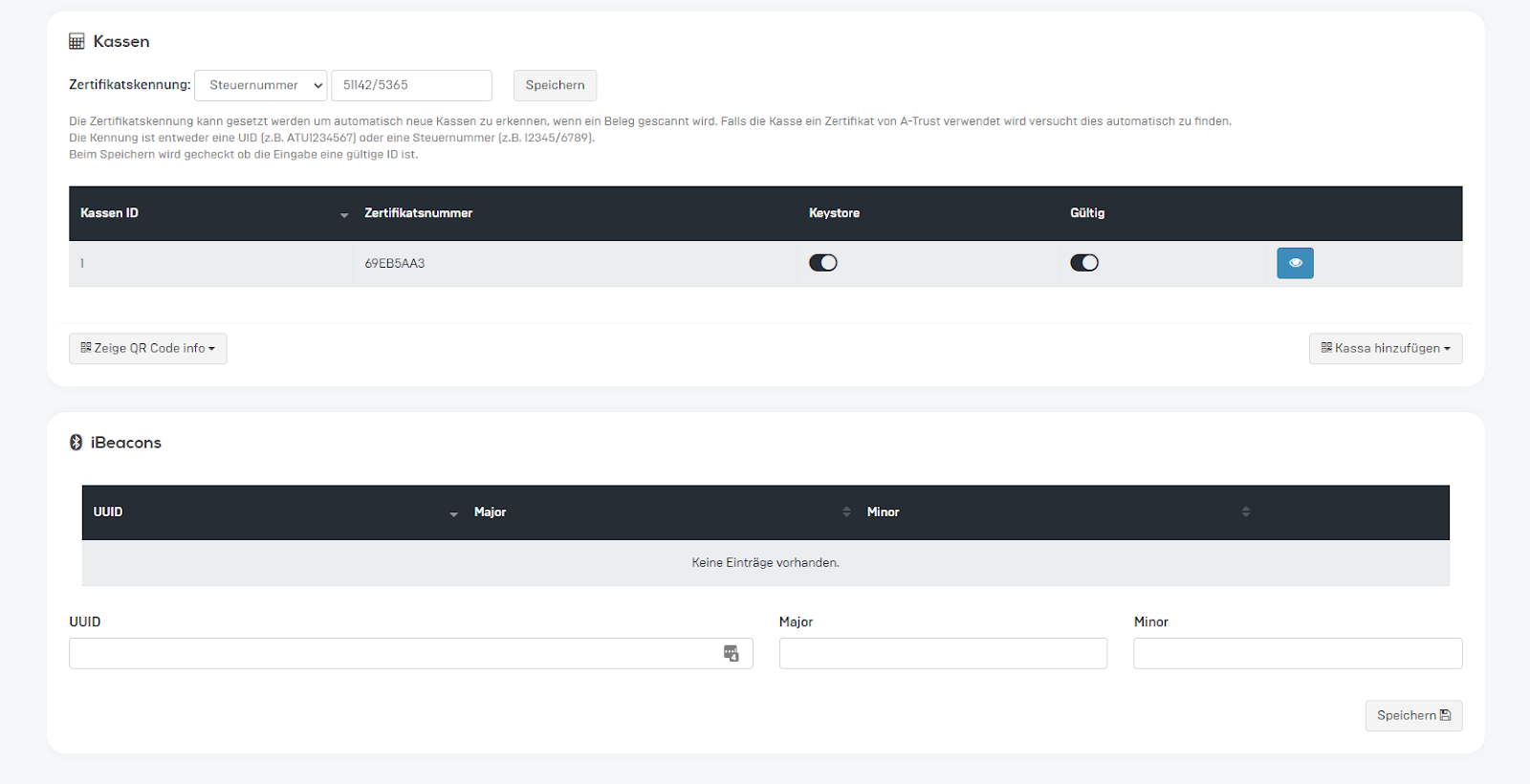
There are three ways to enable a cash register for a specific location in the app:
1. About the certificate identifier
The certificate identifier can be set to automatically recognize new cash registers when a receipt is scanned. If the cash register uses a certificate from A-Trust, an attempt will be made to find it automatically.
The identifier is either a UID number (e.g., ATU1234567) or a tax number (e.g., 12345/6789). Select one of the two options to activate automatic certificate identification. To do this, enter either the UID or the tax number in the field and click Save.
Please note: As soon as a user scans a receipt from a new cash register, it is automatically recorded in the dashboard and activated for further receipt scans, including points allocation. If this is not desired, please do not use the certificate ID or deactivate the cash register in the dashboard.
2. Via the QR code (RKSV / TSE) on the receipt
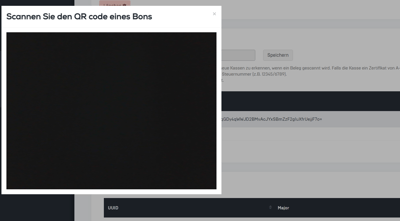
Click on the "Add checkout" button. The camera on the device you are using the dashboard on will open. Hold the QR code from the receipt up to the camera until the checkout has been scanned and automatically added. You will receive a green success message once the checkout has been added correctly.
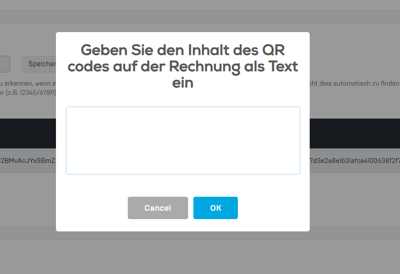
3. About the text contained in the receipt QR code (RKSV / TSE)
Scan the QR code on the receipt with a (mobile phone) camera. The text displayed may look like this: _R1-AT3_RKID...... Copy or type this text and then paste it into the dashboard under "Add cash register" > "Text." The cash register will be added automatically and you will receive a green success message confirming that the cash register has been saved.