---
title: Kampagne als Push Nachicht erstellen - Schritt für Schritt Anleitung
description: Dieser Artikel erklärt dir Schritt für Schritt wie du deine Kund:innen per Push Nachricht informierst.
---
[Zu Content springen](http://knowledge.helloagain.com/kampagne-als-push-nachicht-erstellen-schritt-für-schritt-anleitung#main-content)
[Kontakt](http://knowledge.helloagain.com/kb-tickets/new?hsLang=de)
Hauptnavigation öffnen
Hauptnavigation schließen
- [Kontakt](http://knowledge.helloagain.com/kb-tickets/new)
Wir helfen gern. Was suchst du?
- Es gibt keine Vorschläge, da das Suchfeld leer ist.
1. [Hilfecenter](http://knowledge.helloagain.com/?hsLang=de)
2. [Nachrichten](http://knowledge.helloagain.com/nachrichten?hsLang=de)
3. [Kampagnen](http://knowledge.helloagain.com/nachrichten?hsLang=de#kampagnen)
# Kampagne als Push Nachicht erstellen - Schritt für Schritt Anleitung
## Dieser Artikel erklärt dir Schritt für Schritt wie du deine Kund:innen per Push Nachricht informierst.
Du hast zwei Möglichkeiten deine Kampagnen zu erstellen:
- Als Einmalige Kampagne
- Als Automatisierte Kampagne
Beides ist in Form einer E-Mail, Push Nachricht oder per SMS möglich.
Dieser Artikel geht speziell auf die **Push Benachrichtugung** ein.
### Einmalige Kampagne | z.B. Neuheiten, Muttertag, neue Öffnungszeiten,...
### Automatisierte Kampagne | z.B. Geburtstag oder direkt nach einem Einkauf
**Wann macht es Sinn, eine Automatisierte Kampagne zu erstellen?**
- **Wiederkehrende Ereignisse**: Geburtstagsgrüße oder Jubiläen können automatisiert und personalisiert an Kunden verschickt werden.
- **Nach einem spezifischen Trigger**: Automatisierte Kampagnen sind sinnvoll, wenn nach einem bestimmten Ereignis, z. B. einem Kauf, ein Dankeschön oder ein Vorschlag für ergänzende Produkte gesendet werden soll.
- **Kundennutzen maximieren**: Um die Customer Journey zu optimieren, können automatische Erinnerungen an Bonuspunkte, nicht eingelöste Prämien oder Feedbackumfragen eingerichtet werden.
- **Zeitersparnis**: Automatisierte Kampagnen sparen langfristig Ressourcen, da sie einmalig eingerichtet und danach ohne weiteren Aufwand versendet werden.
#### Schritt für Schritt Anleitung | Erstellen einer automatisierten Kampagne als Push Benachrichtigung zum Geburtstag deiner Kund:innen
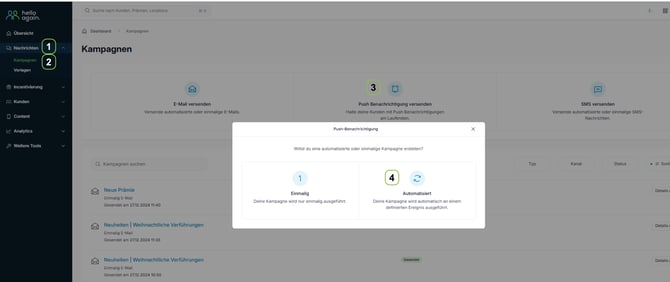
**1. & 2. Kampagnen Bereich öffnen**
- Klicke im Hauptmenü auf der linken Seite auf **"Nachrichten"** und danach auf **"Kampagne".**
**3. Art der Kampagne festlegen**
- Im oberen Bereich kannst du auswählen, ob du eine E-Mail, eine Push-Benachrichtigung oder eine SMS versenden möchtest.
- Wähle für dieses Beispiel **"E-Mail versenden"**.
**4. Art der Kampagne festlegen**
- Du hast die Wahl zwischen einer **Einmaligen Kampagne** (z. B. Advent oder Ostern) oder einer **Automatisierte Kampagne** (z. B. für Geburtstage)
- Klicke für dieses Beispiel auf "**Automatische Kampagne"**
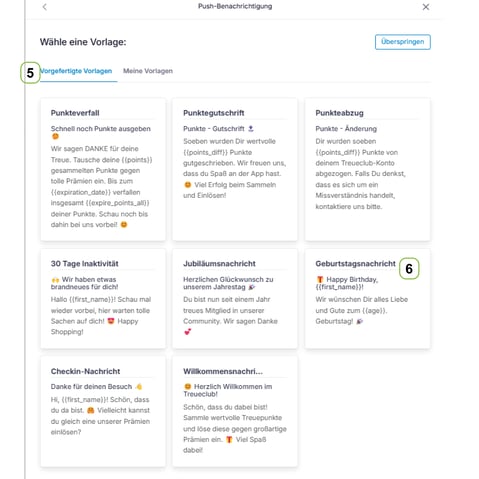
**5. Wähle den Vorlagentyp aus**
- Oben im Fenster gibt es zwei Reiter:
- **Vorgefertigte Vorlagen** (Standardvorlagen).
- **Meine Vorlagen** (eigene Vorlagen, falls bereits erstellt).
- Für dieses Beispiel, wähle den Reiter **„Vorgefertigte Vorlagen“**.
**6. Durchsuche die vorgefertigten Vorlagen**
- Wähle aus verschiedenen vorgefertigten Vorlagen, die speziell für bestimmte Szenarien erstellt wurden.
- Beispiele:
- **Punkteverfall:** Erinnerung an bald ablaufende Punkte.
- **Punktegutschrift:** Information über gutgeschriebene Punkte.
- **30 Tage Inaktivität:** Anreiz für inaktive Kunden, zurückzukehren.
- **Geburtstagsnachricht**: Glückwunschnachricht zum Geburtstag des Kunden.
- Für dieses Beispiel, wähle den Reiter **„Geburtstagsnachricht“**
**Überspringen (optional):**
- Wenn keine Vorlage benötigt wird, kannst du oben rechts die Option „Überspringen“ auswählen, um eine eigene Nachricht von Grund auf zu erstellen.
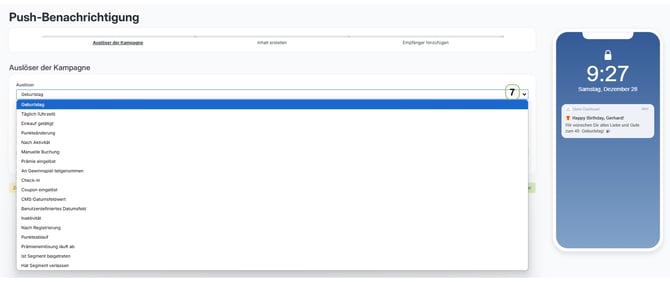
**7. Wähle „Geburtstag“ als Auslöser**
- Im Bereich „Auslöser der Kampagne“ öffne das Dropdown-Menü.
- Wähle „Geburtstag“ aus der Liste der verfügbaren Auslöser.
- Rechts siehst du eine Vorschau der Nachricht.
- Klicke auf "Weiter" um abzuschließen.
**Andere Auslösermöglichkeiten**
Zusätzlich zu Geburtstagen kannst du folgende Auslöser verwenden:
- **Täglich (Uhrzeit):** Regelmäßige Erinnerungen.
- **Einkauf getätigt:** Nachrichten nach einem Kauf.
- **Punkteänderung:** Info über Punktestand-Änderungen.
- **Inaktivität:** Rückgewinnung inaktiver Nutzer.
- **Nach Registrierung:** Begrüßungsnachricht für neue Mitglieder.
Diese Optionen ermöglichen eine flexible Gestaltung von Benachrichtigungen, um verschiedene Kundenaktionen zu adressieren.
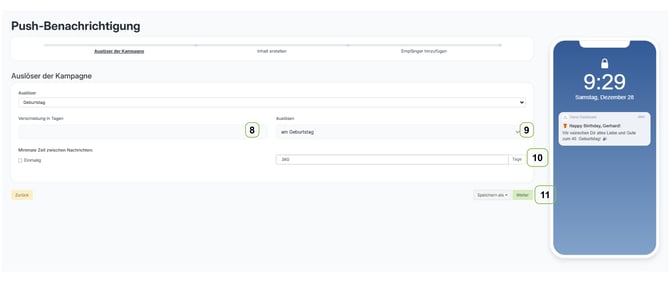
**8. Konfiguriere den Auslöser**
- - Wähle aus, wann die Benachrichtigung gesendet werden soll:
- „Am Geburtstag“ oder mit einer Verschiebung in Tagen (z. B. einige Tage vor/nach dem Geburtstag).
**9. Definiere den zeitlichen Abstand**
- - Gib an, wie viele Tage nach dem Geburtstag eine Nachricht verzögert werden soll, falls nötig.
**10. Setze eine Frequenzregelung**
- - Aktiviere „Einmalig“, wenn die Nachricht nur einmalig pro Kunde gesendet werden soll.
**11. Speichern und Fortfahren**
- - Klicke auf „Speichern als“ um die Kampagne als Vorlage zu speichern
- oder „Weiter“, um die Kampagne fertigzustellen.
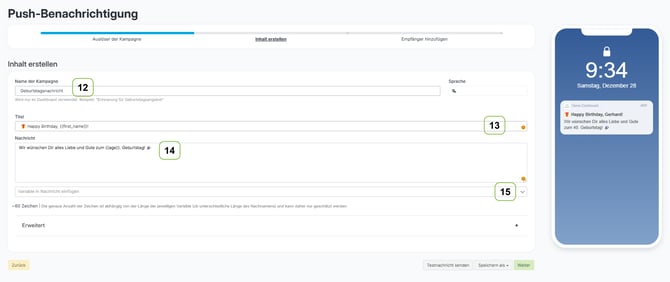
**12. Kampagnennamen festlegen**
- Gebe der Kampagne einen internen Namen, der im Dashboard sichtbar ist.
- Beispiel: „Geburtstagsnachricht“.
**13. Titel der Nachricht eingeben**
- - Formuliere einen ansprechenden Titel für die Benachrichtigung.
- Nutze Platzhalter, um die Nachricht zu personalisieren. Dies kannst du mit der Option „Variable in Nachricht einfügen“ (15) machen.
- Beispiel: Klicke auf „Variable in Nachricht einfügen“, wähle `` aus und füge es in den Titel ein:
„🎁 Happy Birthday, !“.
**14. Nachrichtentext erstellen**
- - Schreibe die Nachricht, die an die Empfänger gesendet wird.
- Verwende ebenfalls die Option „Variable in Nachricht einfügen“ (15), um dynamische Inhalte hinzuzufügen, wie z. B. ``.
- Beispiel: „Wir wünschen Dir alles Liebe und Gute zum . Geburtstag! 🎉“.
**15. Variable einfügen (optional)**
- - Nutze die Schaltfläche „Variable in Nachricht einfügen“, um weitere dynamische Inhalte wie den Vornamen oder das Alter hinzuzufügen.
- **Vorschau prüfen:**
- Auf der rechten Seite wird die Nachricht als Vorschau angezeigt, wie sie auf dem Gerät des Empfängers aussieht. Überprüfe, ob die Variablen korrekt angezeigt werden.
- **Speichern oder Testnachricht senden:**
- Wähle „Testnachricht senden“, um die Nachricht vorab zu prüfen.
- Alternativ klicke auf „Speichern als“, um die Nachricht zu sichern.
- **Weiter klicken:**
- Sobald alle Inhalte finalisiert sind, klicke auf „Weiter“, um die Empfänger auszuwählen.
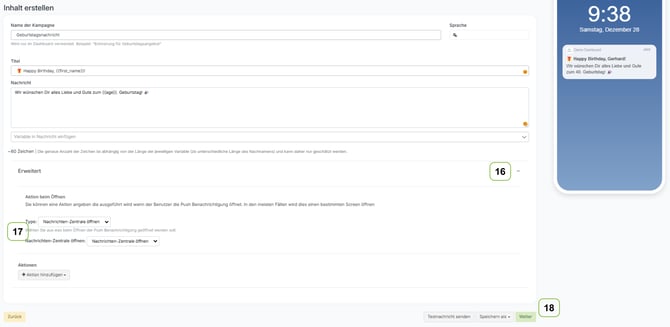
**16. Erweitert-Option öffnen **
- - Klicke auf den Bereich „Erweitert“, um zusätzliche Einstellungen für die Aktion beim Öffnen der Push-Benachrichtigung vorzunehmen.
**Erweitert-Option** | Du willst mehr darüber wissen? **["Hilfe"](https://knowledge.helloagain.com/kampagnen-erweiterungen?hsLang=de#:~:text=1.%20Erweiterungen%20bei%20Push%20Nachrichten)**
**17\. Aktion beim Öffnen definieren**
- - Wähle aus, was passieren soll, wenn der Benutzer die Push-Benachrichtigung öffnet.
- Beispiele:
- **Nachrichten-Zentrale öffnen**: Führt den Benutzer zur Nachrichtenübersicht seines Smartphones.
**18. Speichern oder Testen:**
- - **Testnachricht senden (unten rechts):** Versende eine Probe-Benachrichtigung, um zu überprüfen, wie die Nachricht beim Empfänger angezeigt wird.
- **Speichern als Entwurf:** Sichere die aktuelle Version der Nachricht.
- **Weiter klicken (18):**
- Sobald alle Inhalte und Einstellungen überprüft wurden, klicke auf „Weiter“, um zur Auswahl der Empfänger zu gelangen.
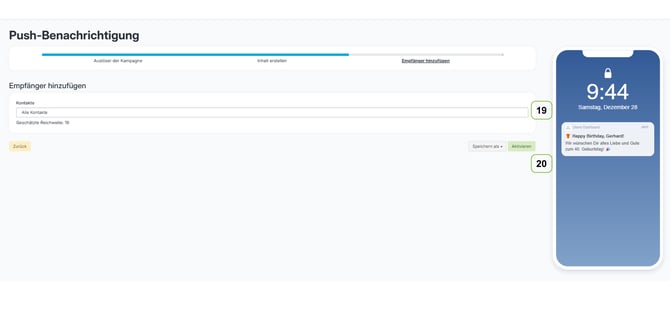
**19. Empfänger auswählen**
- - Im Bereich „Kontakte“ wähle aus, wer die Push-Benachrichtigung erhalten soll:
- **Alle Kontakte:** Sendet die Nachricht an alle gespeicherten Empfänger.
**Aber erst, wenn deren Geburtstag ist!**
- - - **Gefilterte Kontakte:** Nutze Filteroptionen, um spezifische Gruppen oder Segmente auszuwählen.
- Unter „Geschätzte Reichweite“ wird angezeigt, wie viele Empfänger die Nachricht voraussichtlich erreichen wird (z. B. 19 Kontakte).
- **Nachricht überprüfen (Vorschau):**
- Auf der rechten Seite wird die Vorschau der Benachrichtigung angezeigt, wie sie auf dem Endgerät des Empfängers erscheint. Überprüfe Text, Platzhalter und Formatierung.
**20. Kampagne speichern oder aktivieren**
- - **Speichern als:** Wähle diese Option, um die Kampagne als Entwurf zu sichern, falls du später daran arbeiten möchtest.
- **Aktivieren:** Klicke auf „Aktivieren“, um die Kampagne sofort live zu schalten und die Nachricht an die ausgewählten Empfänger zu senden.
- **Zurück oder Weiter:**
- Falls Änderungen notwendig sind, kannst du mit „Zurück“ zu vorherigen Schritten gelangen.
- Wenn die Kampagne final ist, bestätige die Aktivierung und beende den Prozess.
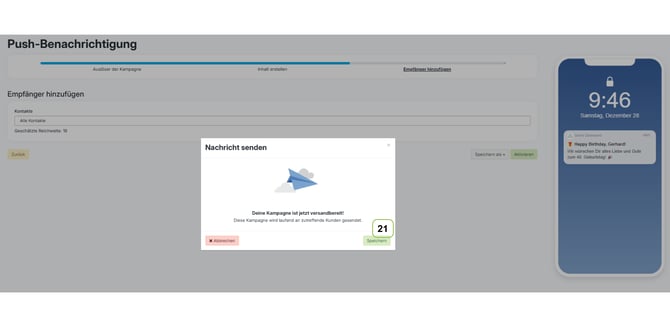
**20. Kampagne versenden:**
- Ein Pop-up-Fenster erscheint mit der Meldung: „Deine Kampagne ist jetzt versandbereit!“.
- Klicke auf **„Speichern“**, um die Nachricht zu versenden.
**Erfolg prüfen:**
- Nach dem Versand kannst du im Kampagnen-Dashboard den Status und die Statistiken der Kampagne einsehen (z. B. Zugestellte, Geöffnete und Geklickte Nachrichten).
Kampagnenresultate | was bietet diese Seite? [**Hilfe**](https://knowledge.helloagain.com/kampagnen-resultate?hsLang=de)
- [Mein Dashboard](http://knowledge.helloagain.com/mein-dashboard?hsLang=de#main-content)
- [Allgemeine Informationen zum Dashboard](http://knowledge.helloagain.com/mein-dashboard?hsLang=de#allgemeine-informationen-zum-dashboard)
- [Onboarding](http://knowledge.helloagain.com/mein-dashboard?hsLang=de#onboarding)
- [App Editor](http://knowledge.helloagain.com/mein-dashboard?hsLang=de#app-editor)
- [FAQs](http://knowledge.helloagain.com/mein-dashboard?hsLang=de#faqs)
- [Nachrichten](http://knowledge.helloagain.com/nachrichten?hsLang=de#main-content)
- [Überblick](http://knowledge.helloagain.com/nachrichten?hsLang=de#%C3%BCberblick)
- [Kampagnen](http://knowledge.helloagain.com/nachrichten?hsLang=de#kampagnen)
- [Kalender](http://knowledge.helloagain.com/nachrichten?hsLang=de#kalender)
- [Autopilot](http://knowledge.helloagain.com/nachrichten?hsLang=de#autopilot)
- [Newsletter](http://knowledge.helloagain.com/nachrichten?hsLang=de#newsletter)
- [Push Notification](http://knowledge.helloagain.com/nachrichten?hsLang=de#push-notification)
- [FAQs](http://knowledge.helloagain.com/nachrichten?hsLang=de#faqs)
- [Incentivierung](http://knowledge.helloagain.com/incentivierung?hsLang=de#main-content)
- [Überblick](http://knowledge.helloagain.com/incentivierung?hsLang=de#%C3%BCberblick)
- [Prämien](http://knowledge.helloagain.com/incentivierung?hsLang=de#pr%C3%A4mien)
- [Gewinnspiele](http://knowledge.helloagain.com/incentivierung?hsLang=de#gewinnspiele)
- [Coupons](http://knowledge.helloagain.com/incentivierung?hsLang=de#coupons)
- [Challenges](http://knowledge.helloagain.com/incentivierung?hsLang=de#challenges)
- [Treuepunkte](http://knowledge.helloagain.com/incentivierung?hsLang=de#treuepunkte)
- [FAQs](http://knowledge.helloagain.com/incentivierung?hsLang=de#faqs)
- [Kunden](http://knowledge.helloagain.com/kunden?hsLang=de#main-content)
- [Überblick](http://knowledge.helloagain.com/kunden?hsLang=de#%C3%BCberblick)
- [Kunden](http://knowledge.helloagain.com/kunden?hsLang=de#kunden)
- [Segmente](http://knowledge.helloagain.com/kunden?hsLang=de#segmente)
- [Kunden importieren](http://knowledge.helloagain.com/kunden?hsLang=de#kunden-importieren)
- [Kundenlöschungen](http://knowledge.helloagain.com/kunden?hsLang=de#kundenl%C3%B6schungen)
- [FAQs](http://knowledge.helloagain.com/kunden?hsLang=de#faqs)
- [Content](http://knowledge.helloagain.com/content?hsLang=de#main-content)
- [Überblick](http://knowledge.helloagain.com/content?hsLang=de#%C3%BCberblick)
- [Locations](http://knowledge.helloagain.com/content?hsLang=de#locations)
- [Push My App](http://knowledge.helloagain.com/content?hsLang=de#push-my-app)
- [Umfragen](http://knowledge.helloagain.com/content?hsLang=de#umfragen)
- [App Banner](http://knowledge.helloagain.com/content?hsLang=de#app-banner)
- [Seitenverwaltung](http://knowledge.helloagain.com/content?hsLang=de#seitenverwaltung)
- [CMS](http://knowledge.helloagain.com/content?hsLang=de#cms)
- [News](http://knowledge.helloagain.com/content?hsLang=de#news)
- [Formulare](http://knowledge.helloagain.com/content?hsLang=de#formulare)
- [Kundenbewertungen](http://knowledge.helloagain.com/content?hsLang=de#kundenbewertungen)
- [Events](http://knowledge.helloagain.com/content?hsLang=de#events)
- [FAQs](http://knowledge.helloagain.com/content?hsLang=de#faqs)
- [Gamification](http://knowledge.helloagain.com/gamification?hsLang=de#main-content)
- [Kalender-Spiele](http://knowledge.helloagain.com/gamification?hsLang=de#kalender-spiele)
- [Glücksrad](http://knowledge.helloagain.com/gamification?hsLang=de#gl%C3%BCcksrad)
- [Blocks](http://knowledge.helloagain.com/gamification?hsLang=de#blocks)
- [Analytics](http://knowledge.helloagain.com/analytics?hsLang=de#main-content)
- [Überblick](http://knowledge.helloagain.com/analytics?hsLang=de#%C3%BCberblick)
- [Frequenzstatistik](http://knowledge.helloagain.com/analytics?hsLang=de#frequenzstatistik)
- [Bevorzugte Locations](http://knowledge.helloagain.com/analytics?hsLang=de#bevorzugte-locations)
- [FAQs](http://knowledge.helloagain.com/analytics?hsLang=de#faqs)
- [Weitere Tools](http://knowledge.helloagain.com/weitere-tools?hsLang=de#main-content)
- [RKSV Bons](http://knowledge.helloagain.com/weitere-tools?hsLang=de#rksv-bons)
- [Belegwarteschlange](http://knowledge.helloagain.com/weitere-tools?hsLang=de#belegwarteschlange)
- [Verdächtige Aktivitäten](http://knowledge.helloagain.com/weitere-tools?hsLang=de#verd%C3%A4chtige-aktivit%C3%A4ten)
- [Automatisierungen](http://knowledge.helloagain.com/weitere-tools?hsLang=de#automatisierungen)
- [Deeplinks](http://knowledge.helloagain.com/weitere-tools?hsLang=de#deeplinks)
- [Digitaler Stempelpass](http://knowledge.helloagain.com/weitere-tools?hsLang=de#digitaler-stempelpass)
- [FAQs](http://knowledge.helloagain.com/weitere-tools?hsLang=de#faqs)
- [Einstellungen](http://knowledge.helloagain.com/einstellungen?hsLang=de#main-content)
- [Appstore Connect Keys](http://knowledge.helloagain.com/einstellungen?hsLang=de#appstore-connect-keys)
- [Rechtliches](http://knowledge.helloagain.com/einstellungen?hsLang=de#rechtliches)
- [Registrierungsflow / Login](http://knowledge.helloagain.com/einstellungen?hsLang=de#registrierungsflow-login)
- [2-Faktor-Authentifizierung](http://knowledge.helloagain.com/einstellungen?hsLang=de#2-faktor-authentifizierung)
- [Developer Account](http://knowledge.helloagain.com/einstellungen?hsLang=de#developer-account)
- [FAQs](http://knowledge.helloagain.com/einstellungen?hsLang=de#faqs)
- [Addons](http://knowledge.helloagain.com/addons?hsLang=de#main-content)
- [Fraud Detection](http://knowledge.helloagain.com/addons?hsLang=de#fraud-detection)
- [Games Subscription Package](http://knowledge.helloagain.com/addons?hsLang=de#games-subscription-package)
- [Mehrfachpunkte-Regel](http://knowledge.helloagain.com/addons?hsLang=de#mehrfachpunkte-regel)
- [Mehrsprachigkeit](http://knowledge.helloagain.com/addons?hsLang=de#mehrsprachigkeit)
- [Digitale Guthabenkarte und Geschenkegutscheine](http://knowledge.helloagain.com/addons?hsLang=de#digitale-guthabenkarte-und-geschenkegutscheine)
- [Mitarbeiterbereich](http://knowledge.helloagain.com/addons?hsLang=de#mitarbeiterbereich)
- [Kassenintegration](http://knowledge.helloagain.com/addons?hsLang=de#kassenintegration)
- [Product Updates](http://knowledge.helloagain.com/product-updates?hsLang=de#main-content)
- [Product Updates 2024](http://knowledge.helloagain.com/product-updates?hsLang=de#product-updates-2024)
- [Product Updates 2025](http://knowledge.helloagain.com/product-updates?hsLang=de#product-updates-2025)
- [Product Updates 2026](http://knowledge.helloagain.com/product-updates?hsLang=de#product-updates-2026)
- [PushMyApp](http://knowledge.helloagain.com/pushmyapp?hsLang=de#main-content)
- [Super User Guide](http://knowledge.helloagain.com/pushmyapp?hsLang=de#super-user-guide)
- [Prämiensystem mit Mehrwert](http://knowledge.helloagain.com/pushmyapp?hsLang=de#pr%C3%A4miensystem-mit-mehrwert)
- [Aktive App-Bewerbung](http://knowledge.helloagain.com/pushmyapp?hsLang=de#aktive-app-bewerbung)
- [Regelmäßige Kommunikation](http://knowledge.helloagain.com/pushmyapp?hsLang=de#regelm%C3%A4%C3%9Fige-kommunikation)
- [Quick Start Guide für Mitarbeiter:innen](http://knowledge.helloagain.com/pushmyapp?hsLang=de#quick-start-guide-f%C3%BCr-mitarbeiterinnen)
- [hello again Funktionsbeschreibung](http://knowledge.helloagain.com/hello-again-funktionsbeschreibung?hsLang=de#main-content)
- [Starter Plan](http://knowledge.helloagain.com/hello-again-funktionsbeschreibung?hsLang=de#starter-plan)
- [Plus Plan](http://knowledge.helloagain.com/hello-again-funktionsbeschreibung?hsLang=de#plus-plan)
- [Professional Plan](http://knowledge.helloagain.com/hello-again-funktionsbeschreibung?hsLang=de#professional-plan)
- [Addons](http://knowledge.helloagain.com/hello-again-funktionsbeschreibung?hsLang=de#addons)
- [Integrationen](http://knowledge.helloagain.com/hello-again-funktionsbeschreibung?hsLang=de#integrationen)
[](https://www.helloagain.com/de)
Copyright © 2025, hello again GmbH