What is two-factor authentication and what are its benefits?
- Two-factor means that a user's identity is verified using two different components:
In our case, this is your email address + password and a code sent via text message to the mobile number you have specified. - This means that users can only log in to the dashboard if they have both.
- This provides additional security for your dashboard, preventing unauthorized persons from accessing your sensitive customer data.
How does it work?
📹 Click here for the video tutorial: Enabling two-factor authentication
Step-by-step instructions
1️⃣ Log in to the dashboard
- Log in to the dashboard as usual with your email address and password.
2️⃣ Open Rights Management
-
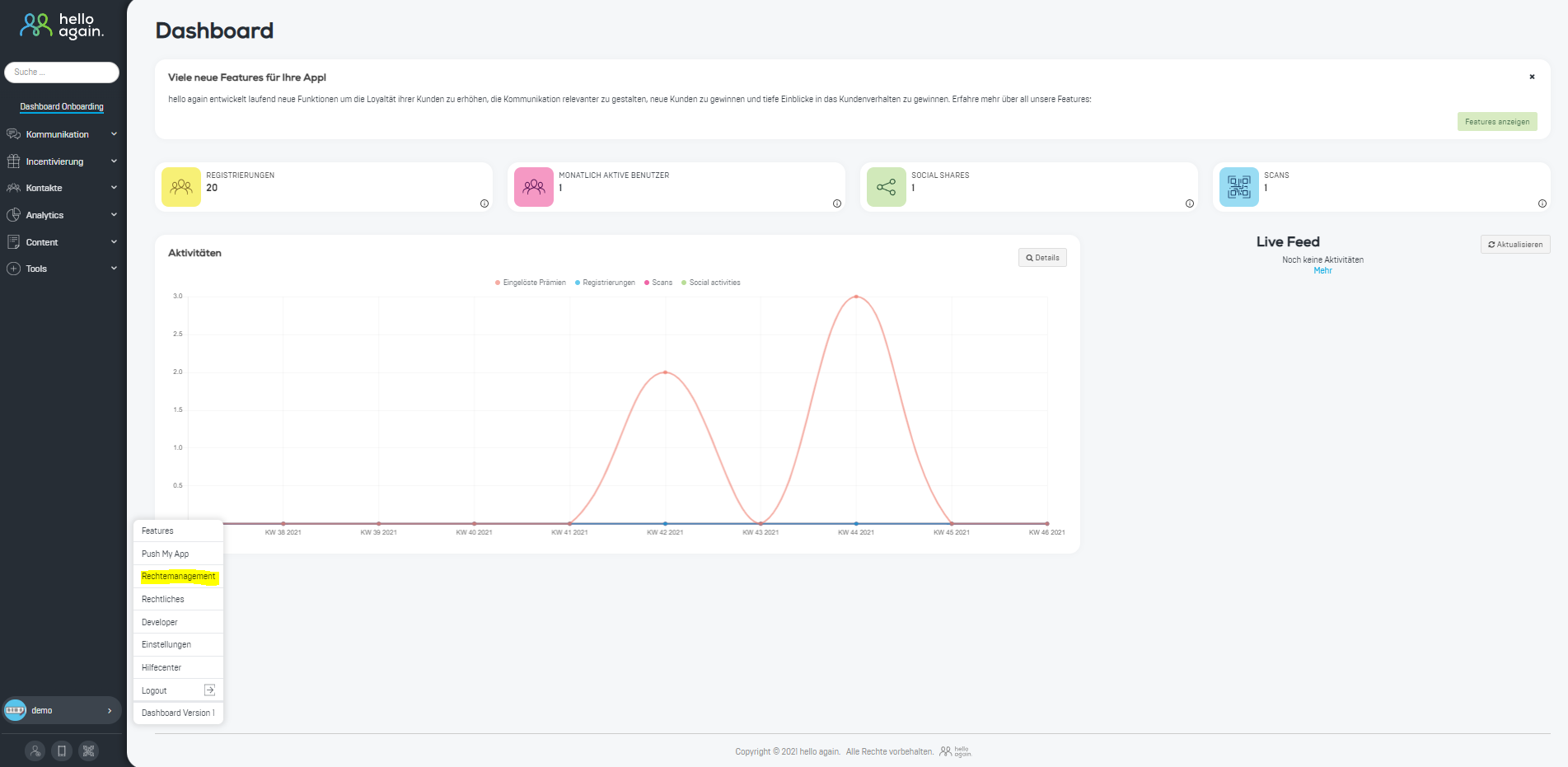
- Click on Advanced Settings (at the bottom left of the menu).
- Then select Rights Management.
3️⃣ Enter phone number
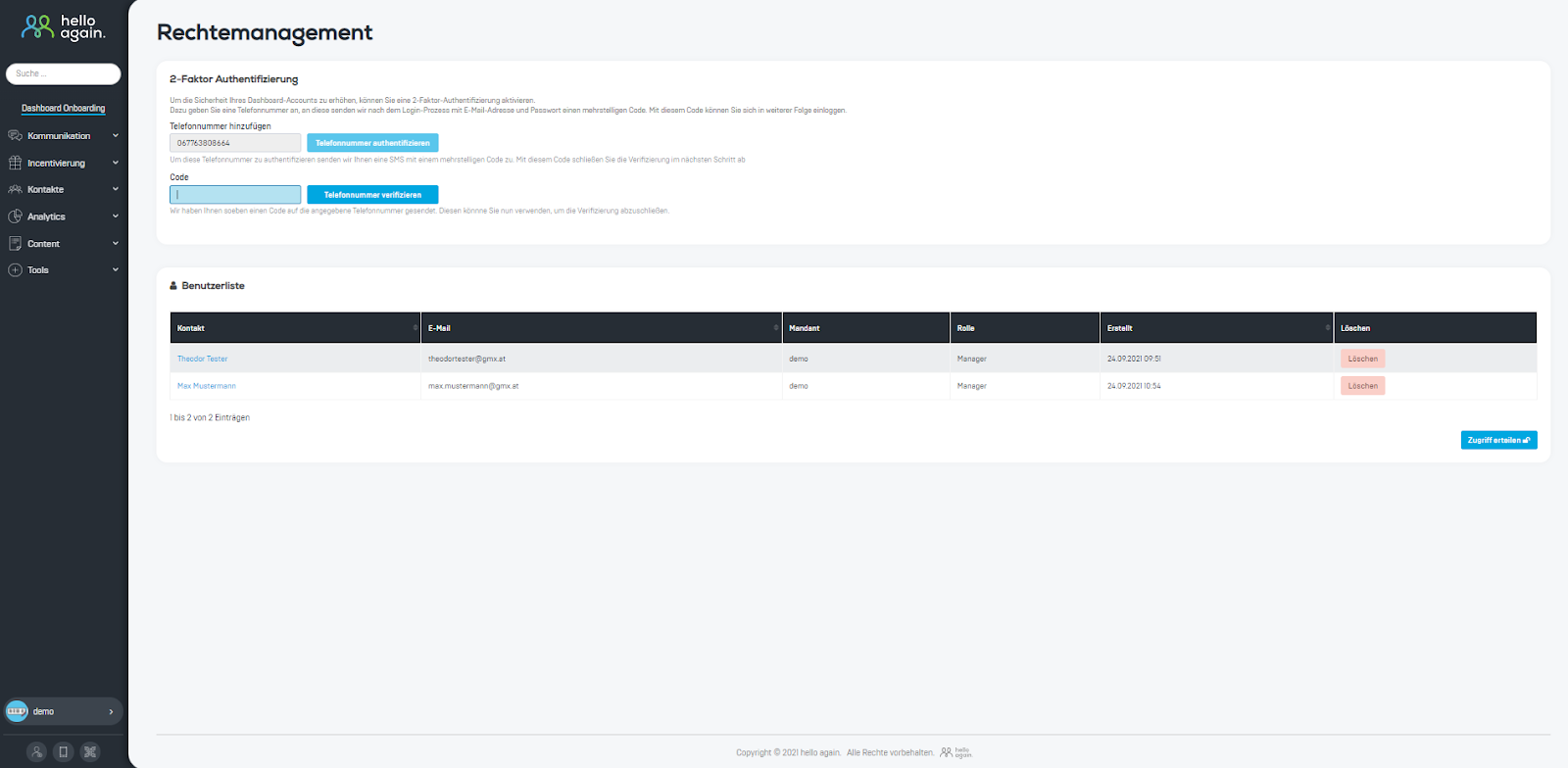
- Enter your phone number for the 2-factor authentication option.

4️⃣ Enter SMS code
- You will receive a code via text message.
- Enter the code in the next step in the dashboard.
🚨 Note: The code is only valid for 10 minutes!
5️⃣ Two-factor authentication enabled
- From now on, you will need your email address, password, and cell phone to log in.
6️⃣ Change phone number
-
- If your phone number changes, you can delete it under Rights Management and enter a new number.

From now on, registration will take place in two steps:
1️⃣ Step 1: Enter your email address and password.
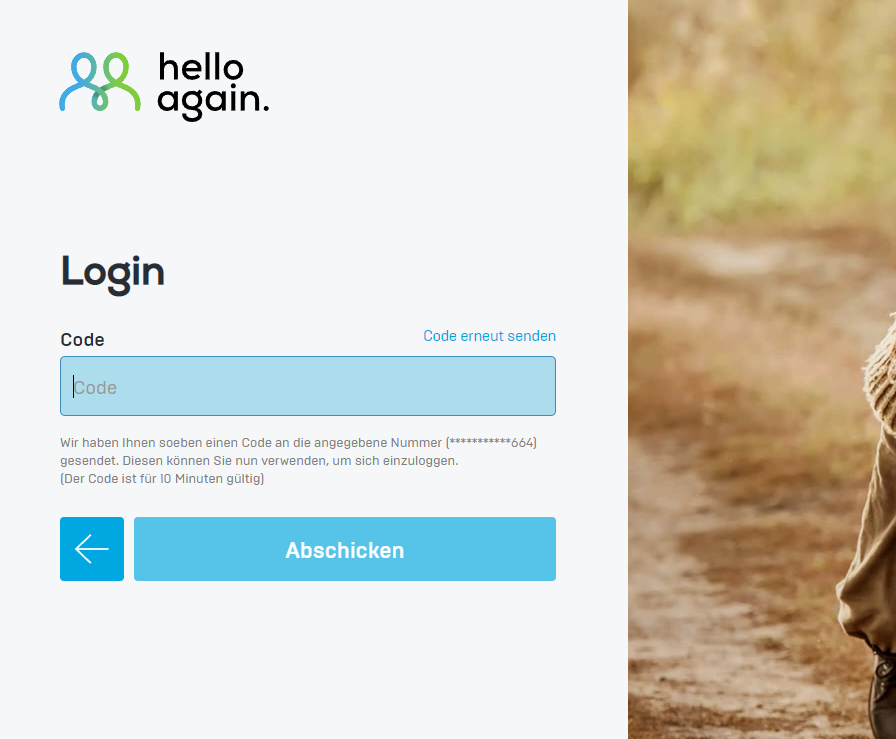
2️⃣ Step 2: Enter the SMS code for confirmation.
📌 Tip: Always have your cell phone ready so you can log in easily. 😊

2.